
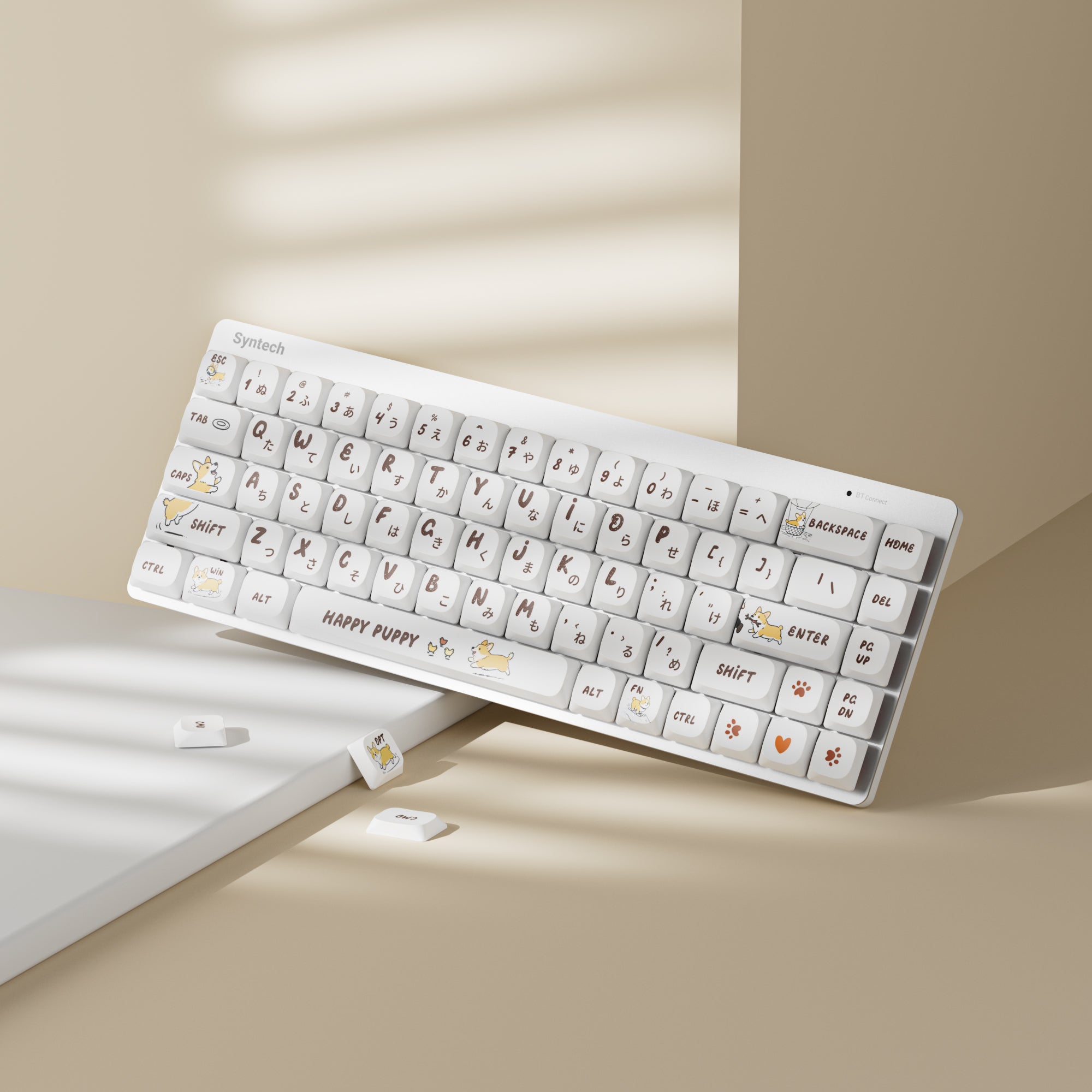

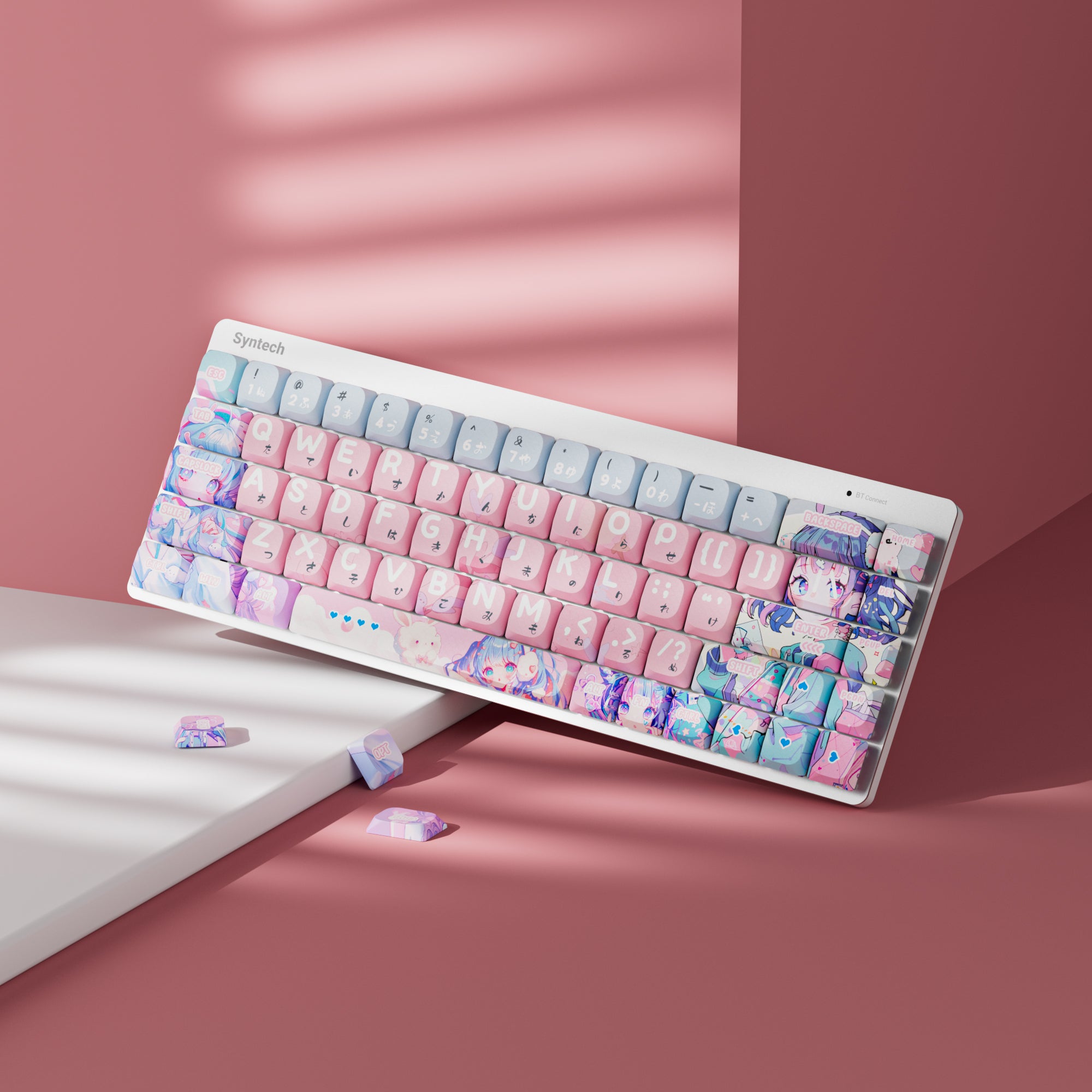
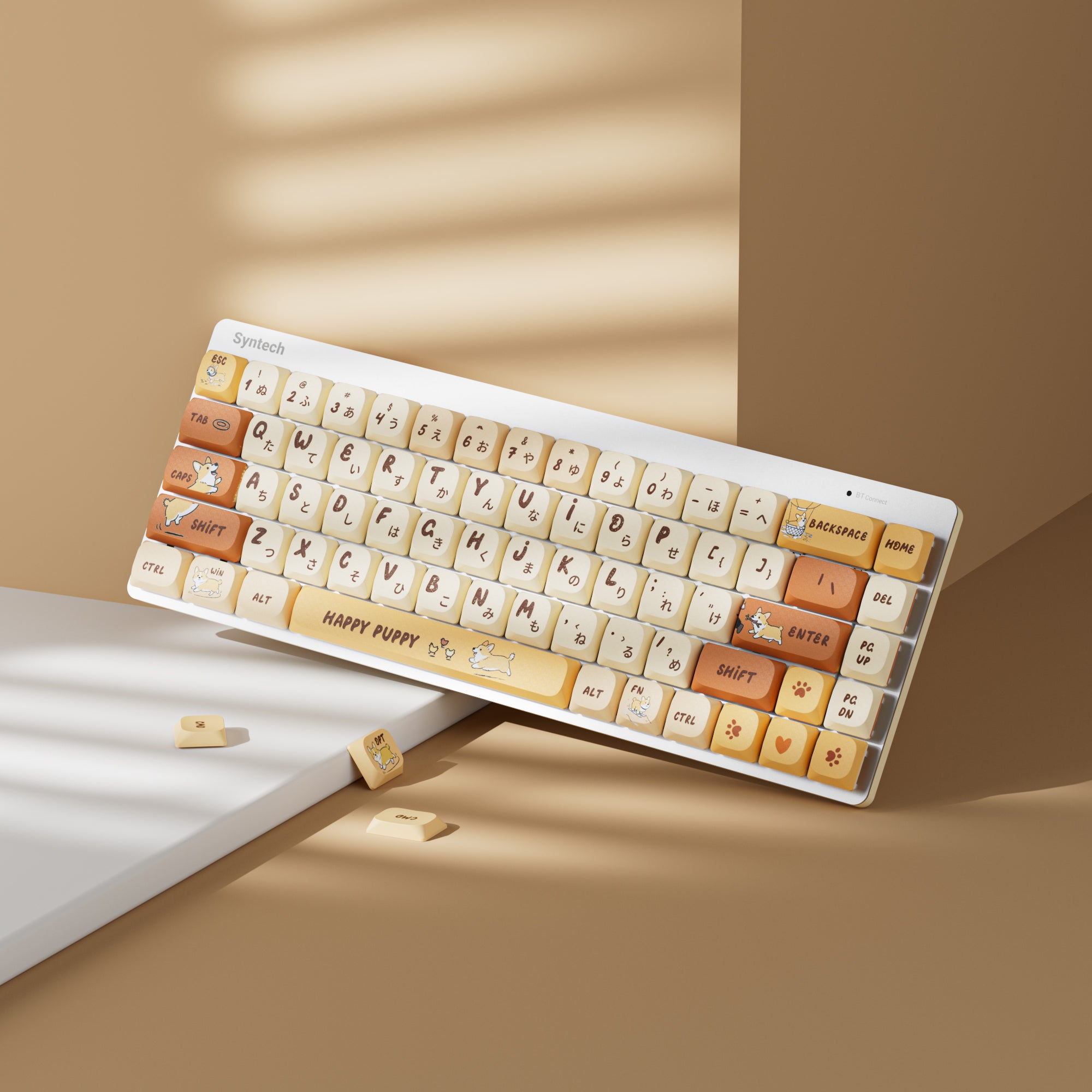

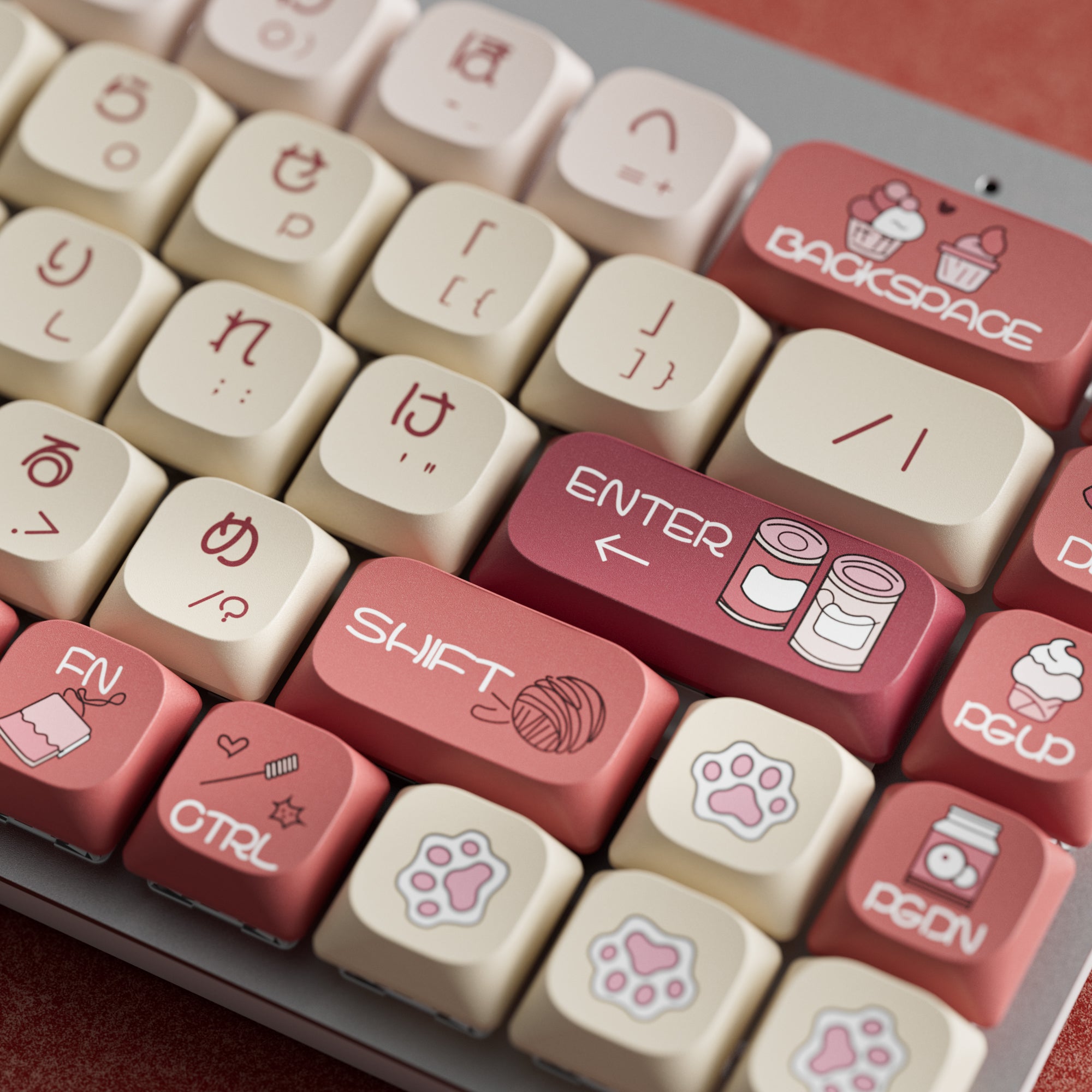
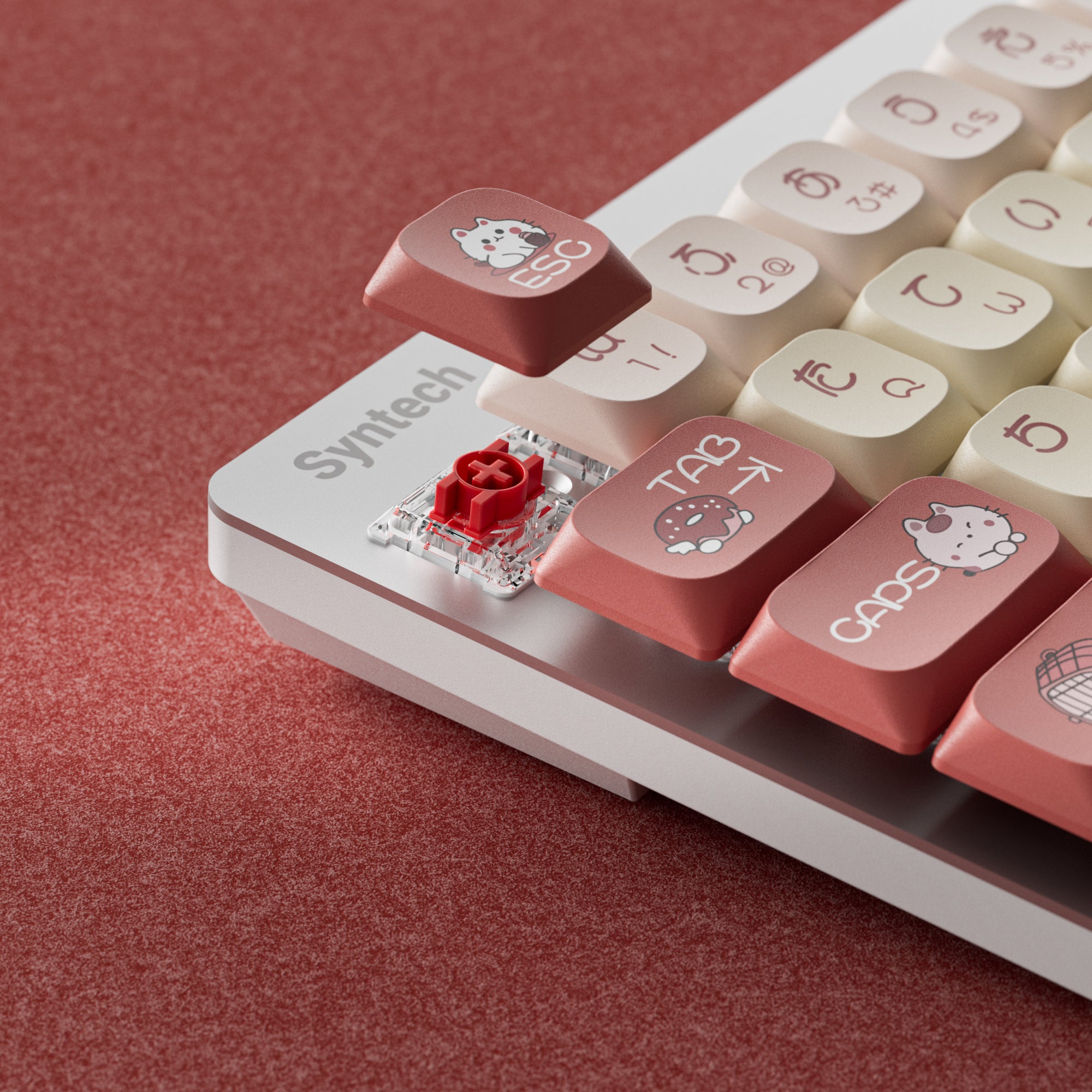
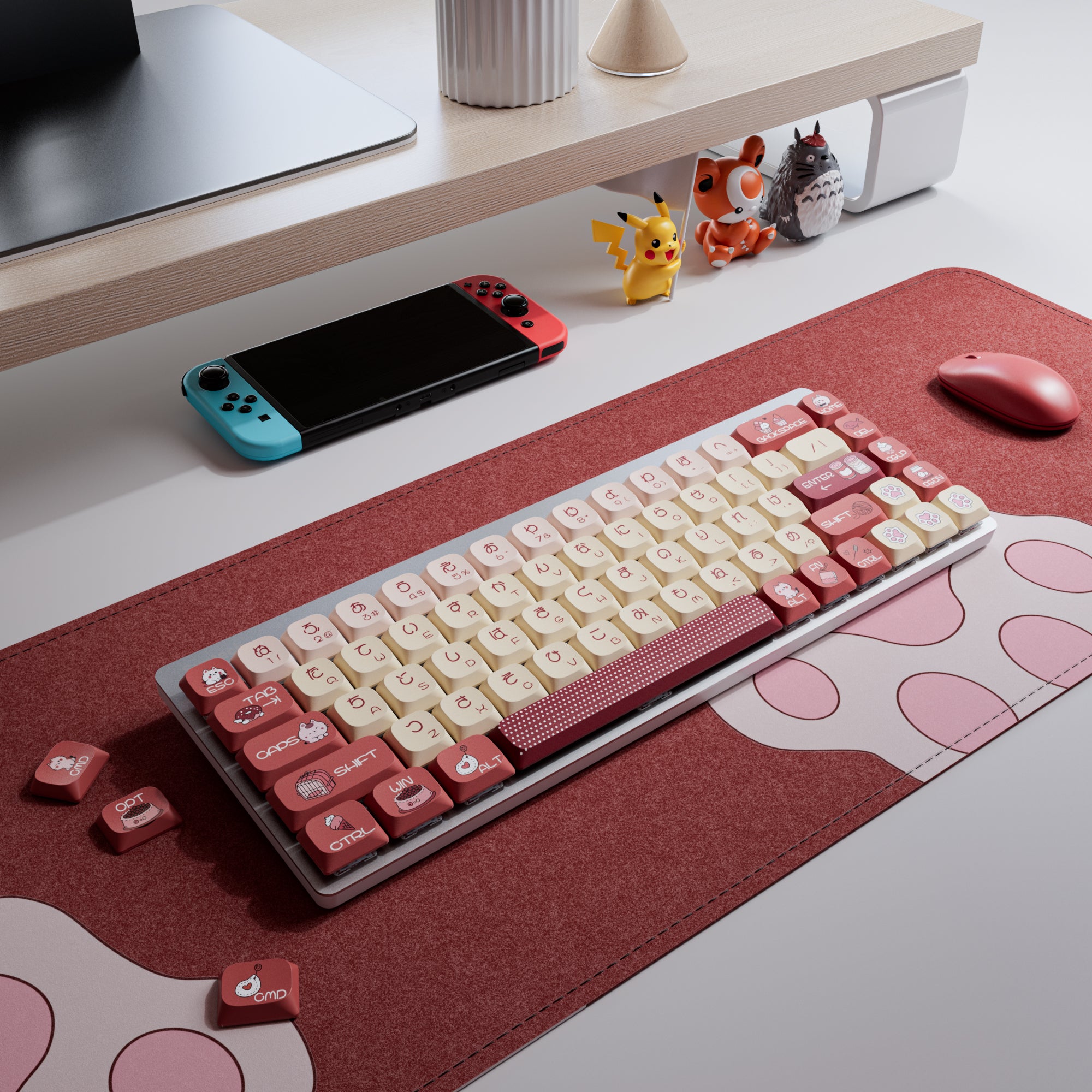
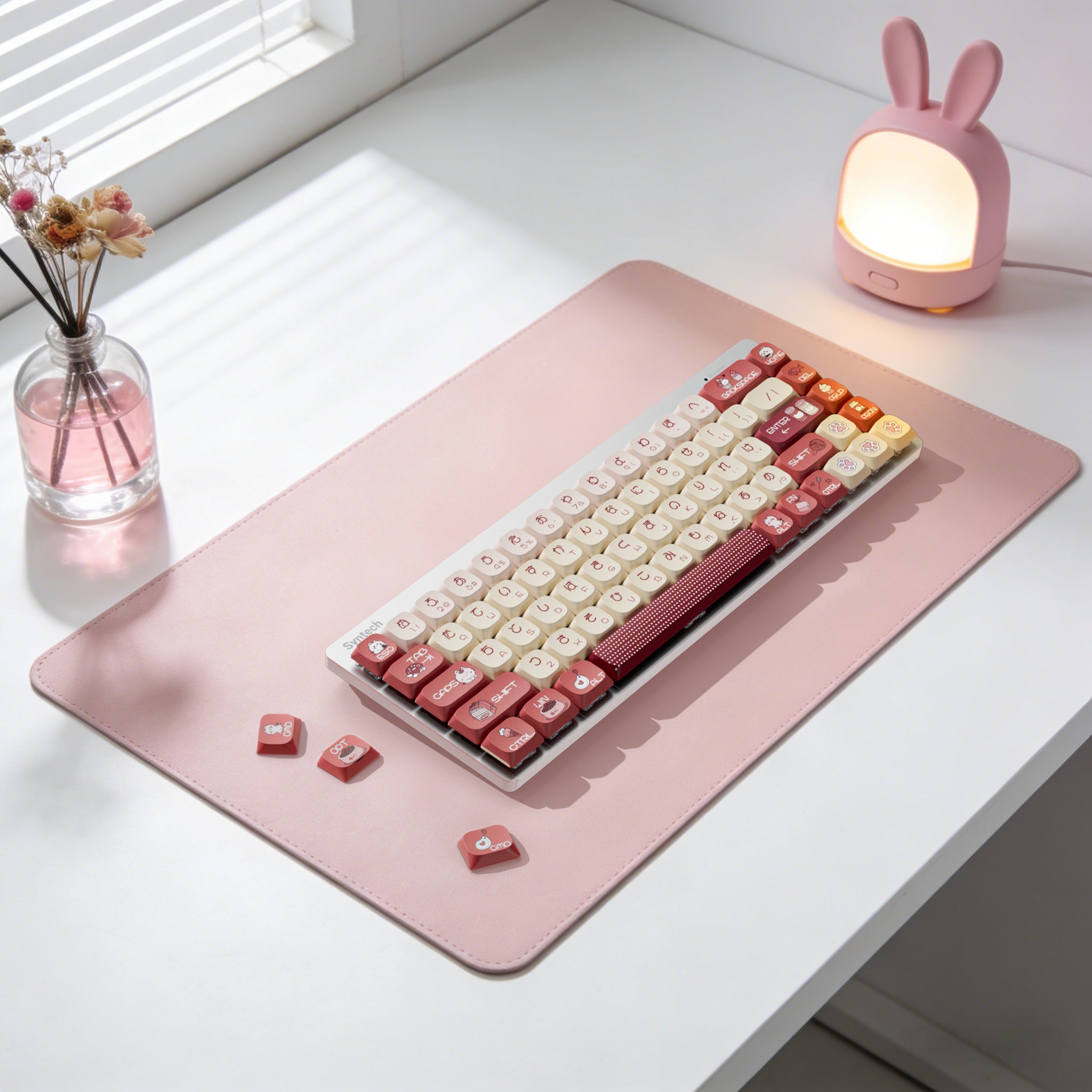
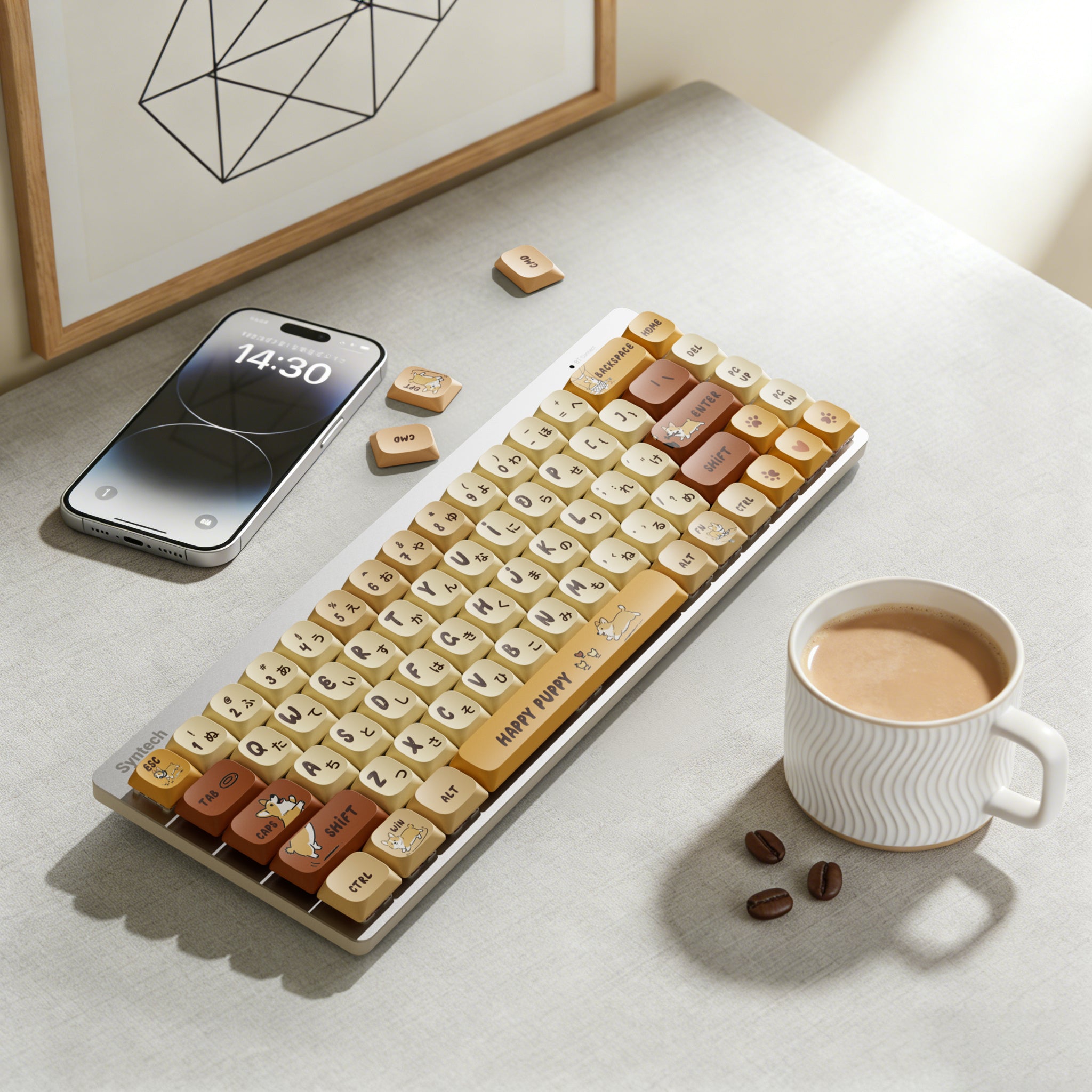
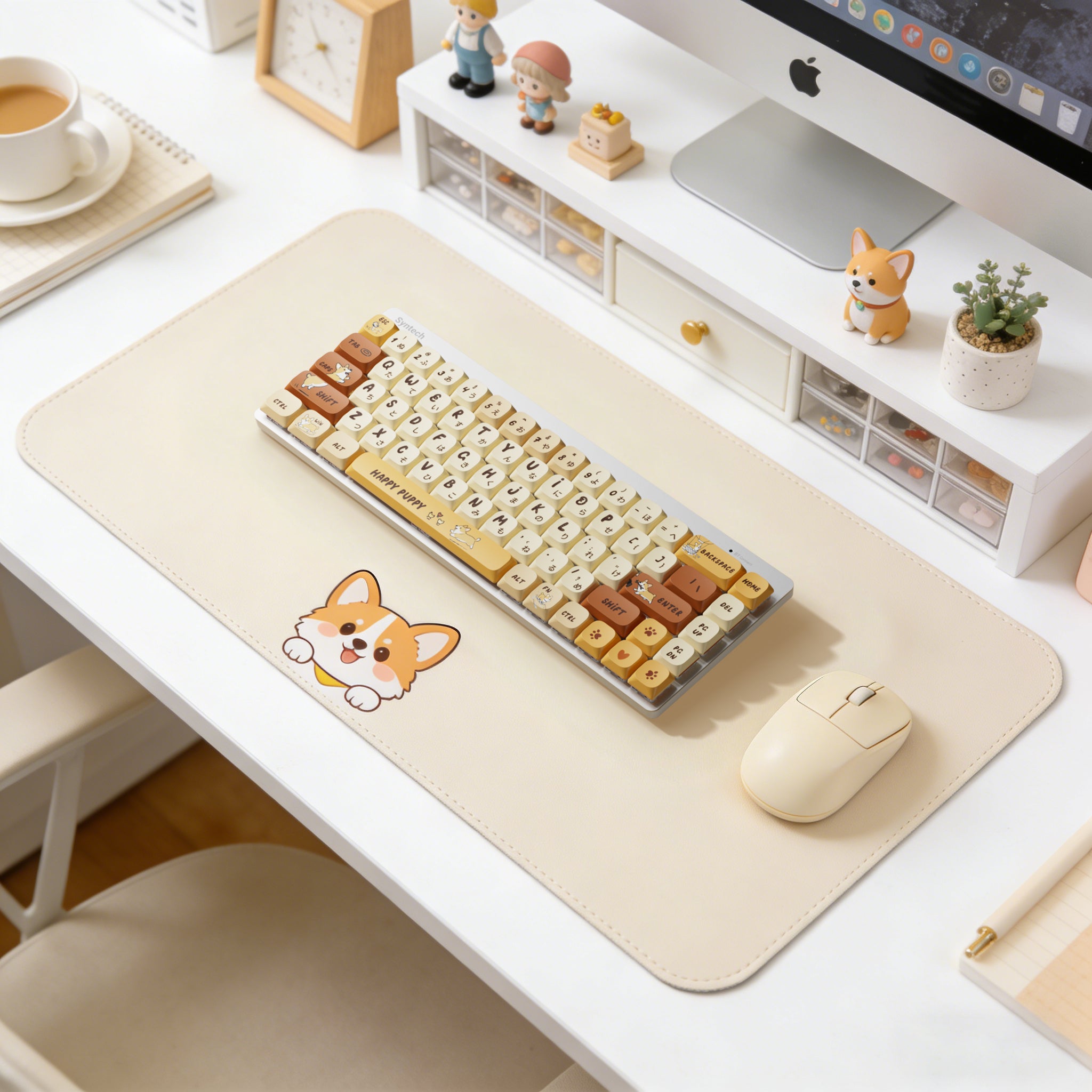
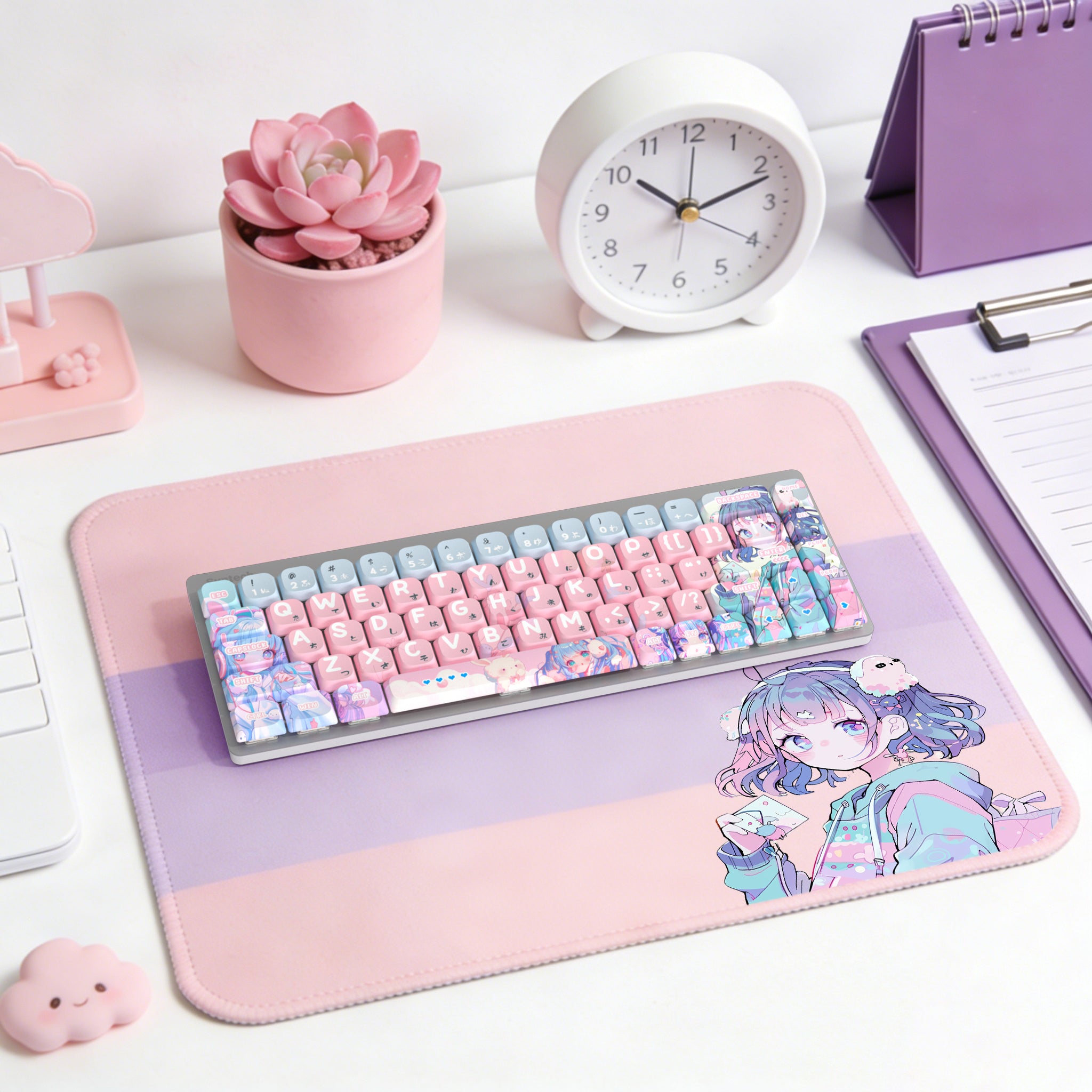
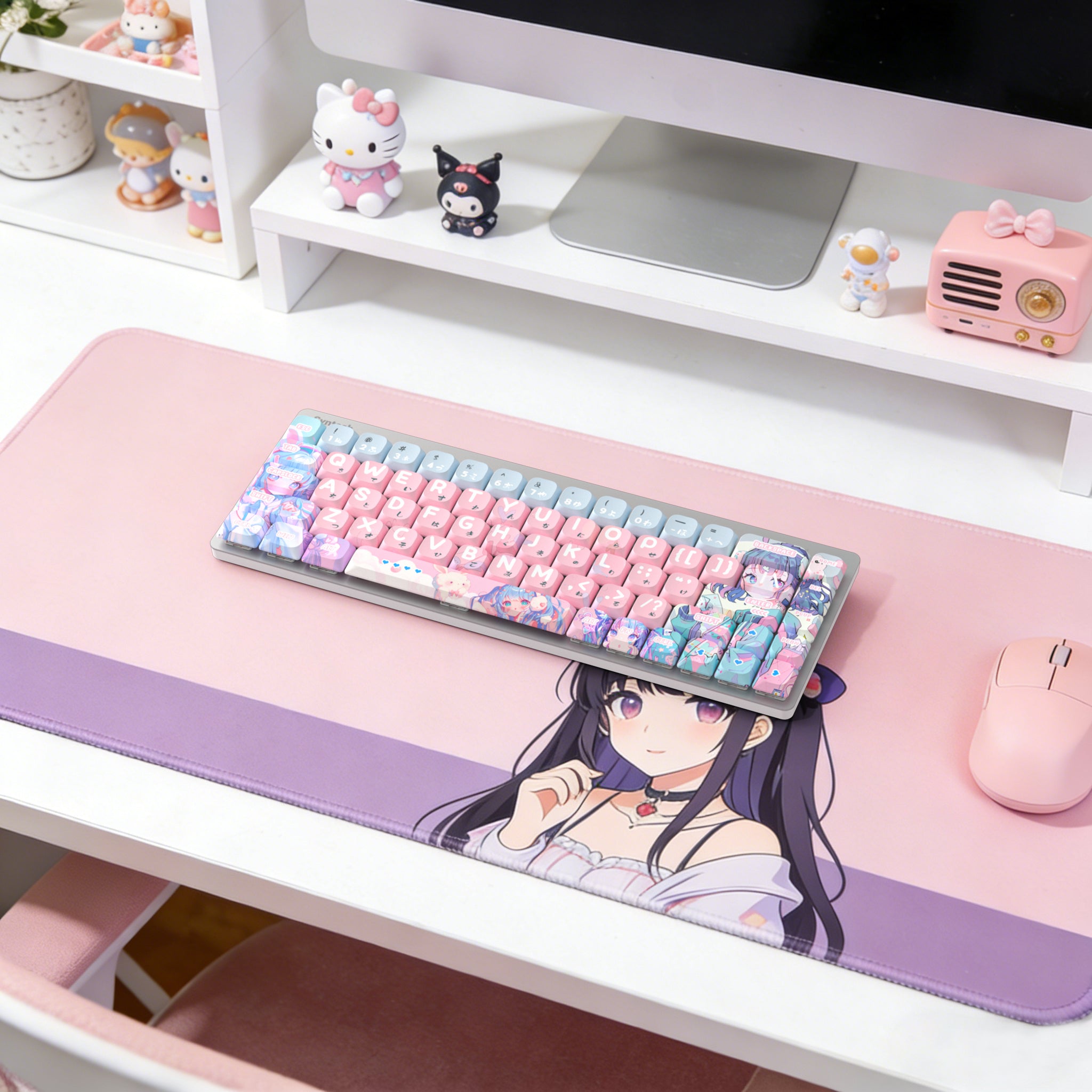
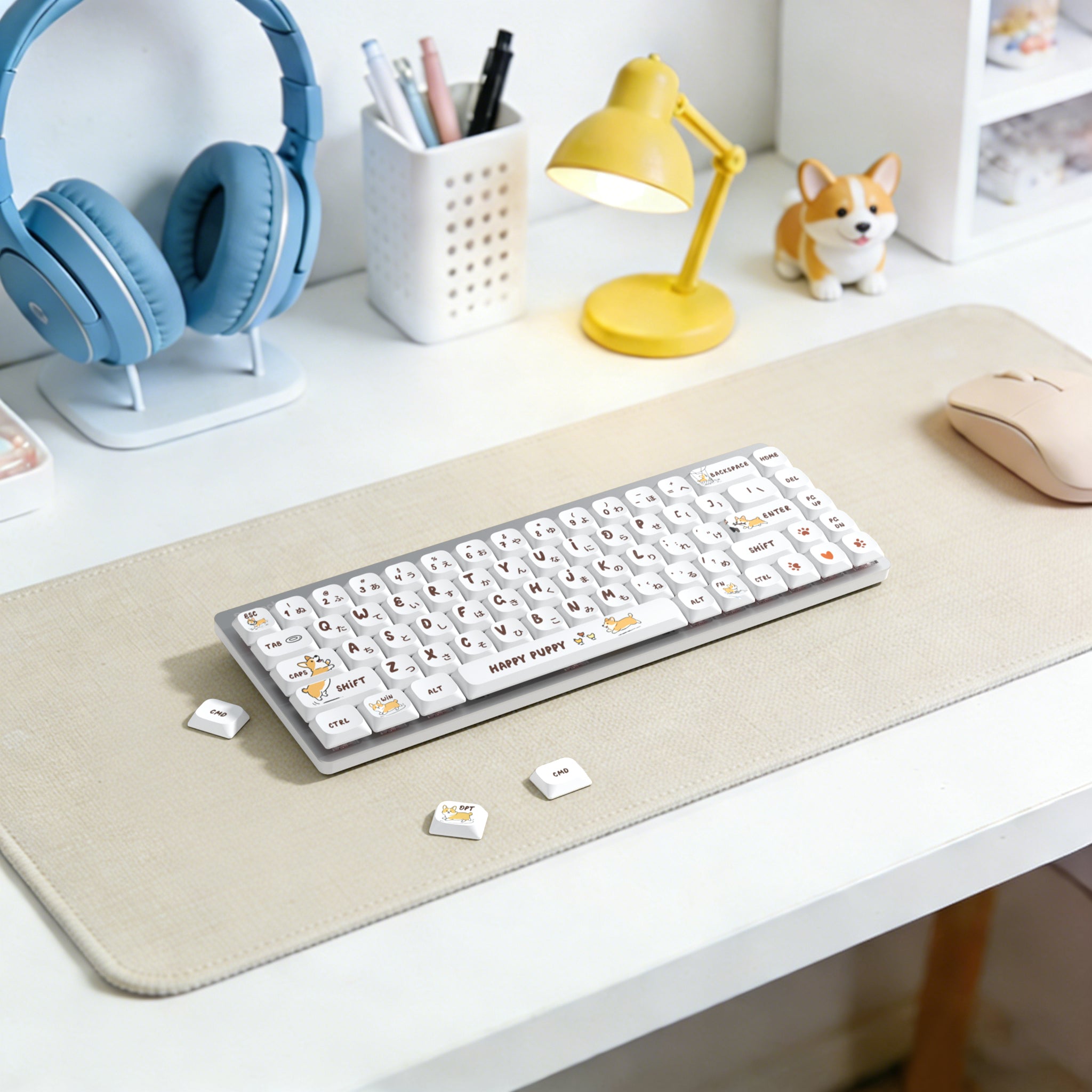
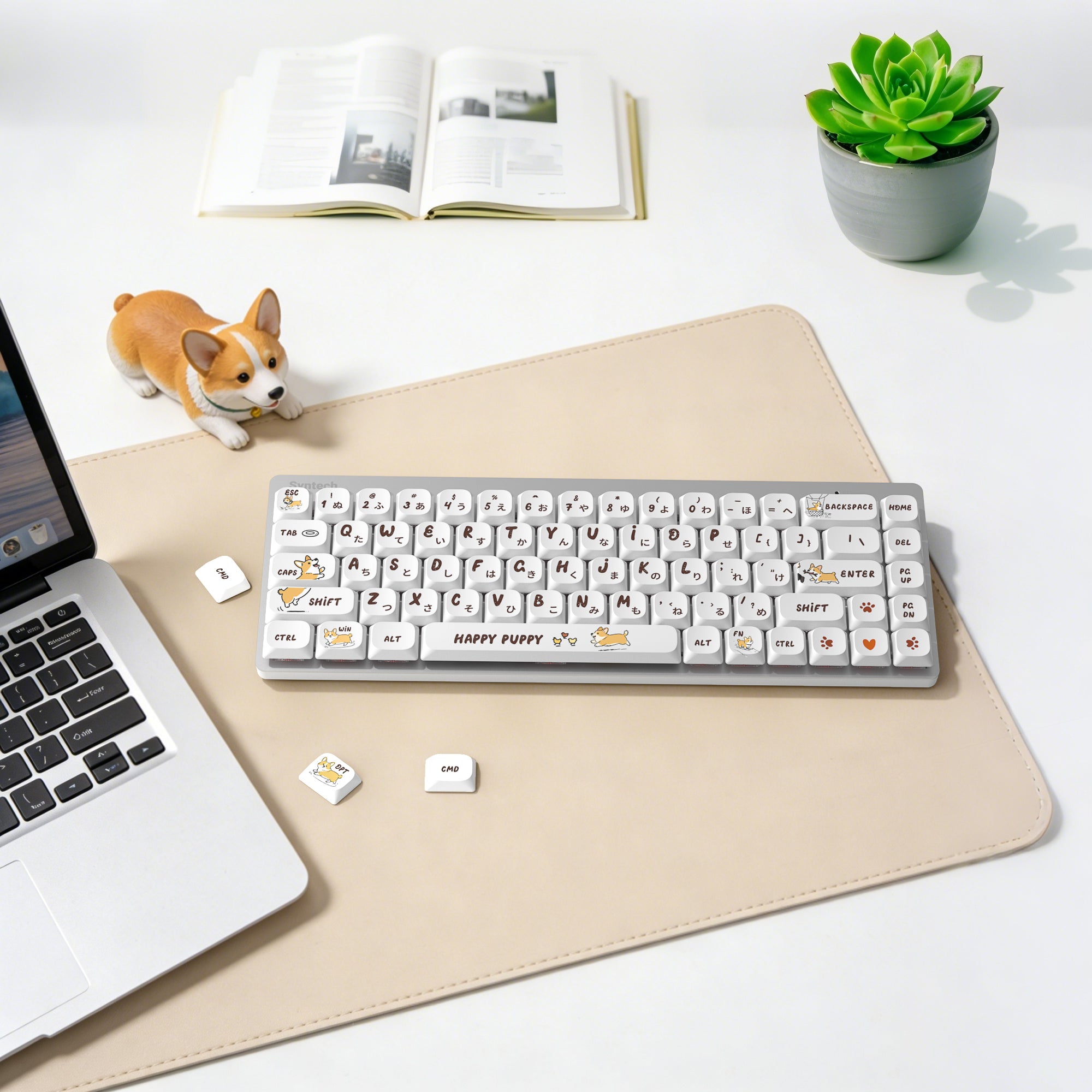
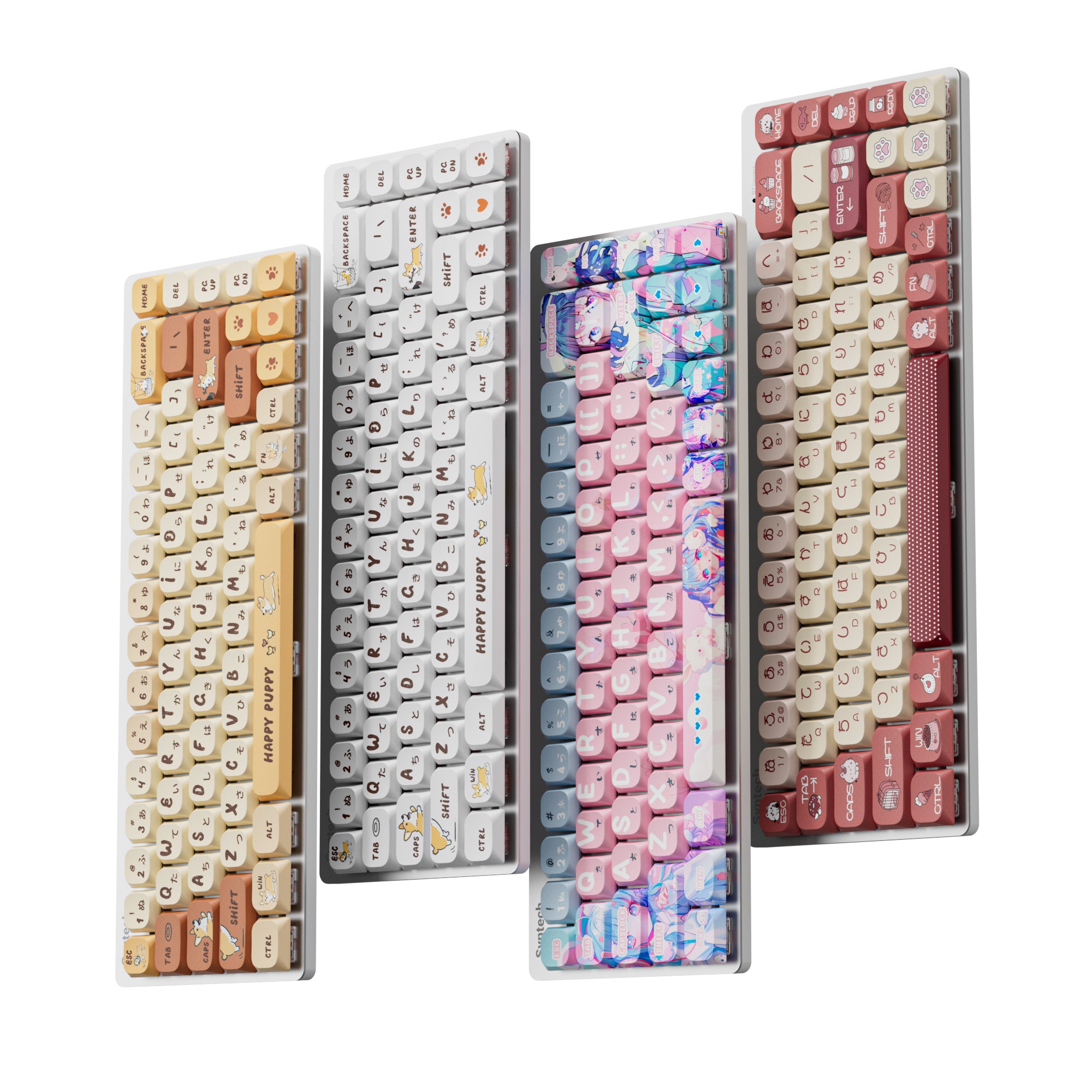
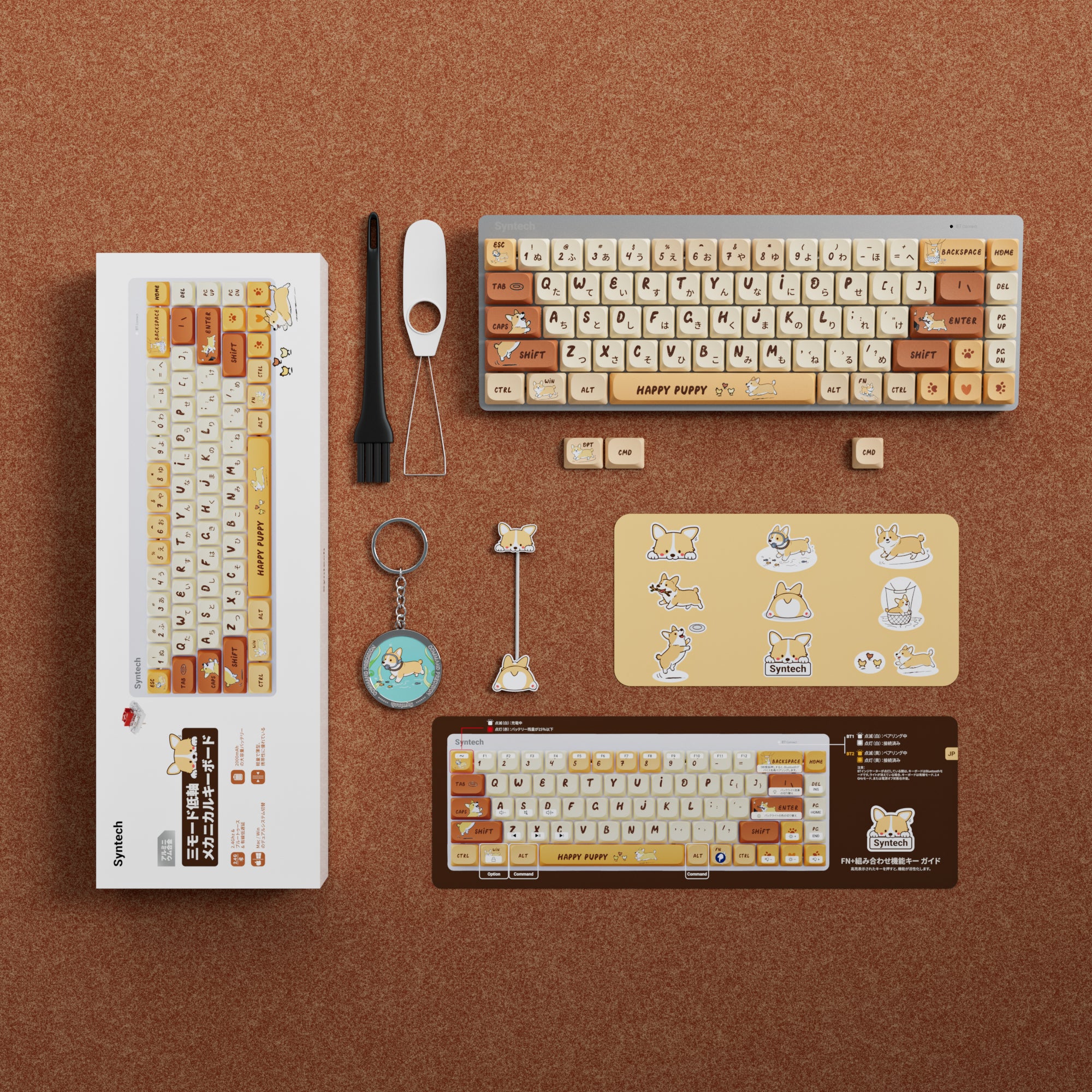
Syntech Chronos 68 ロープロファイルメカニカルキーボード
-
超ポータブル
-
Mac & Windows 対応
-
薄型メカニカル
- 60時間のバッテリー駆動
オプションを選択

100% Secure
Payment

Customer
Support

Guaranteed After-
Sales

30-Days Hassle-Free
Return
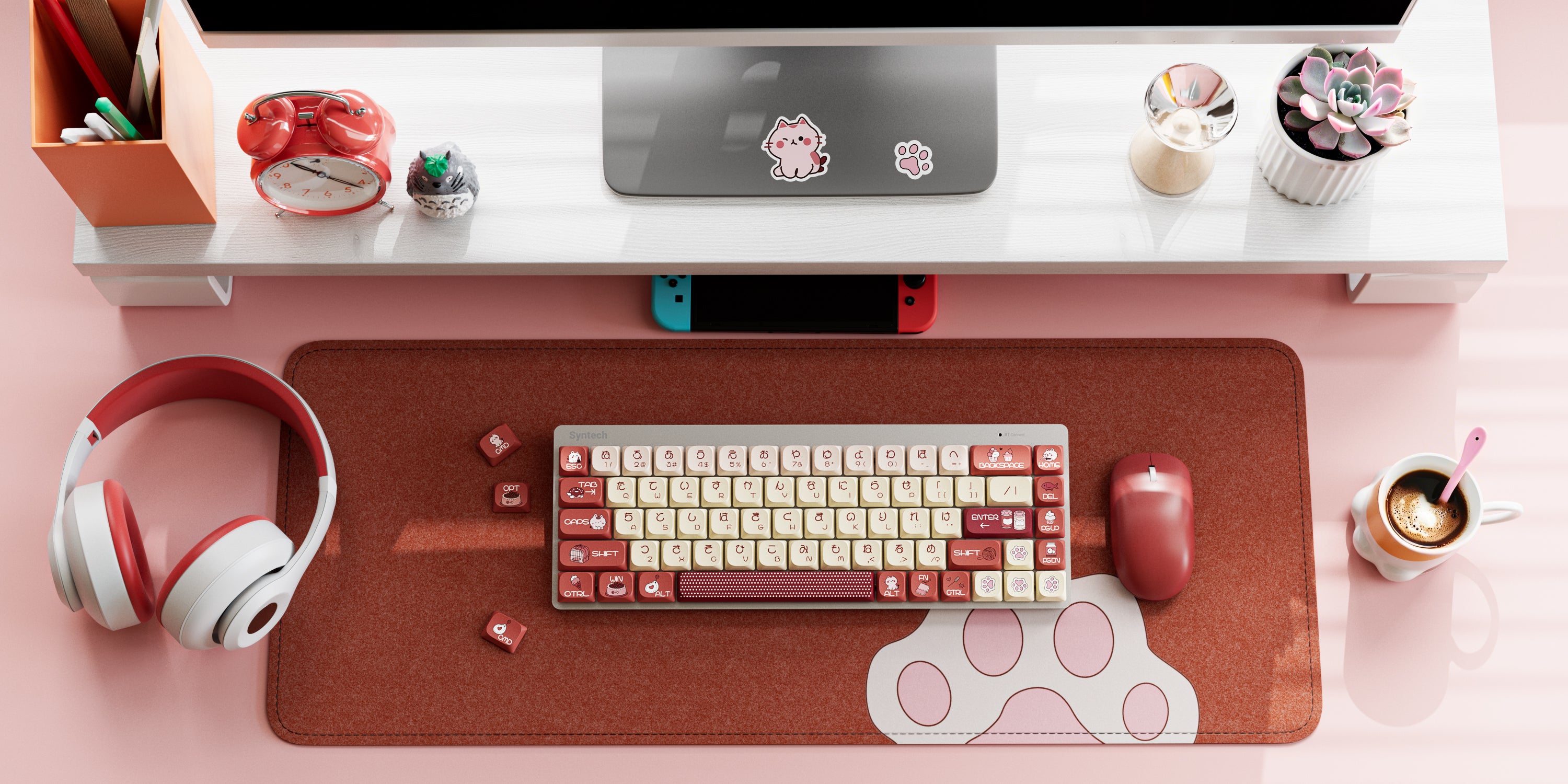
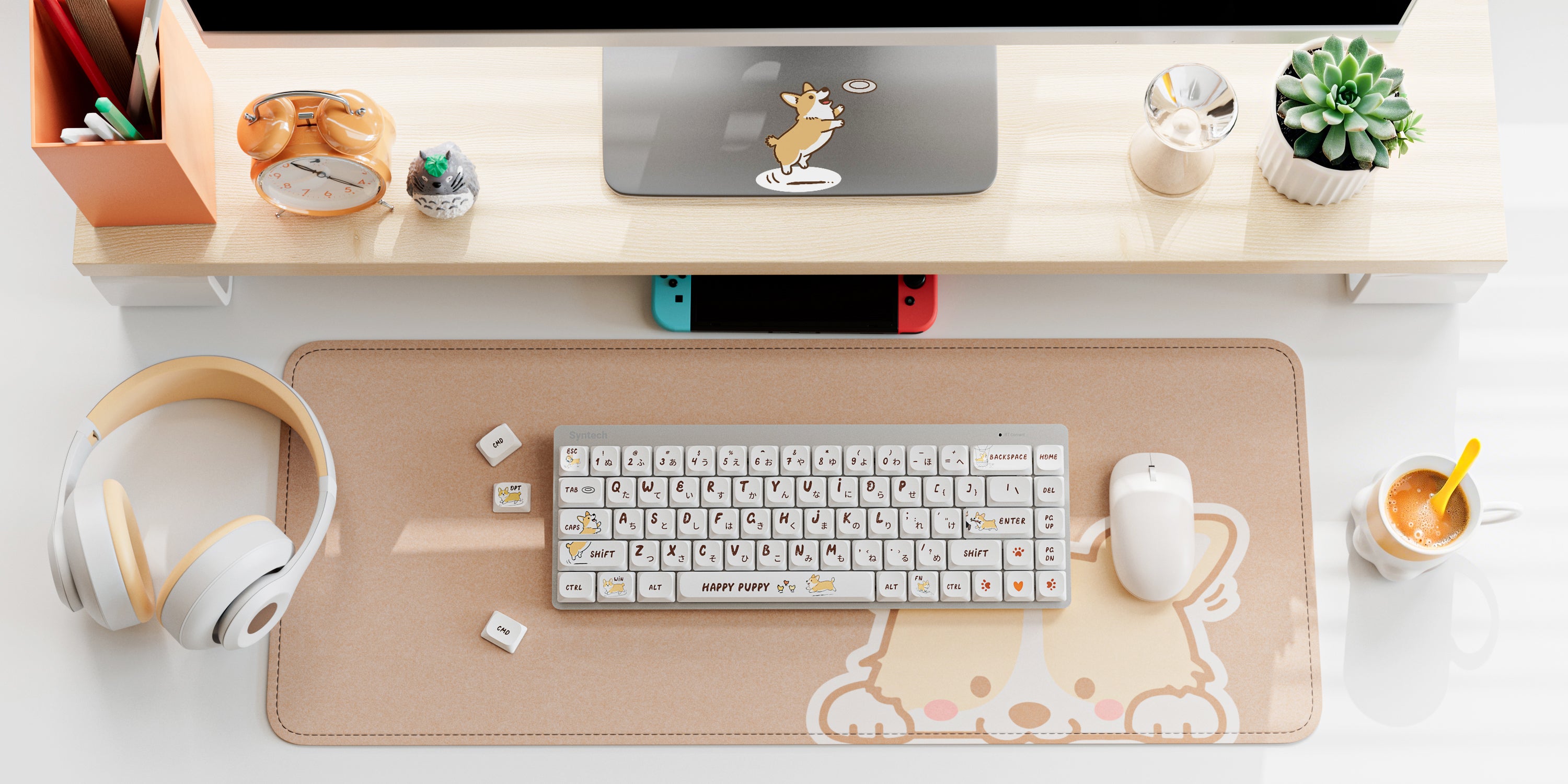
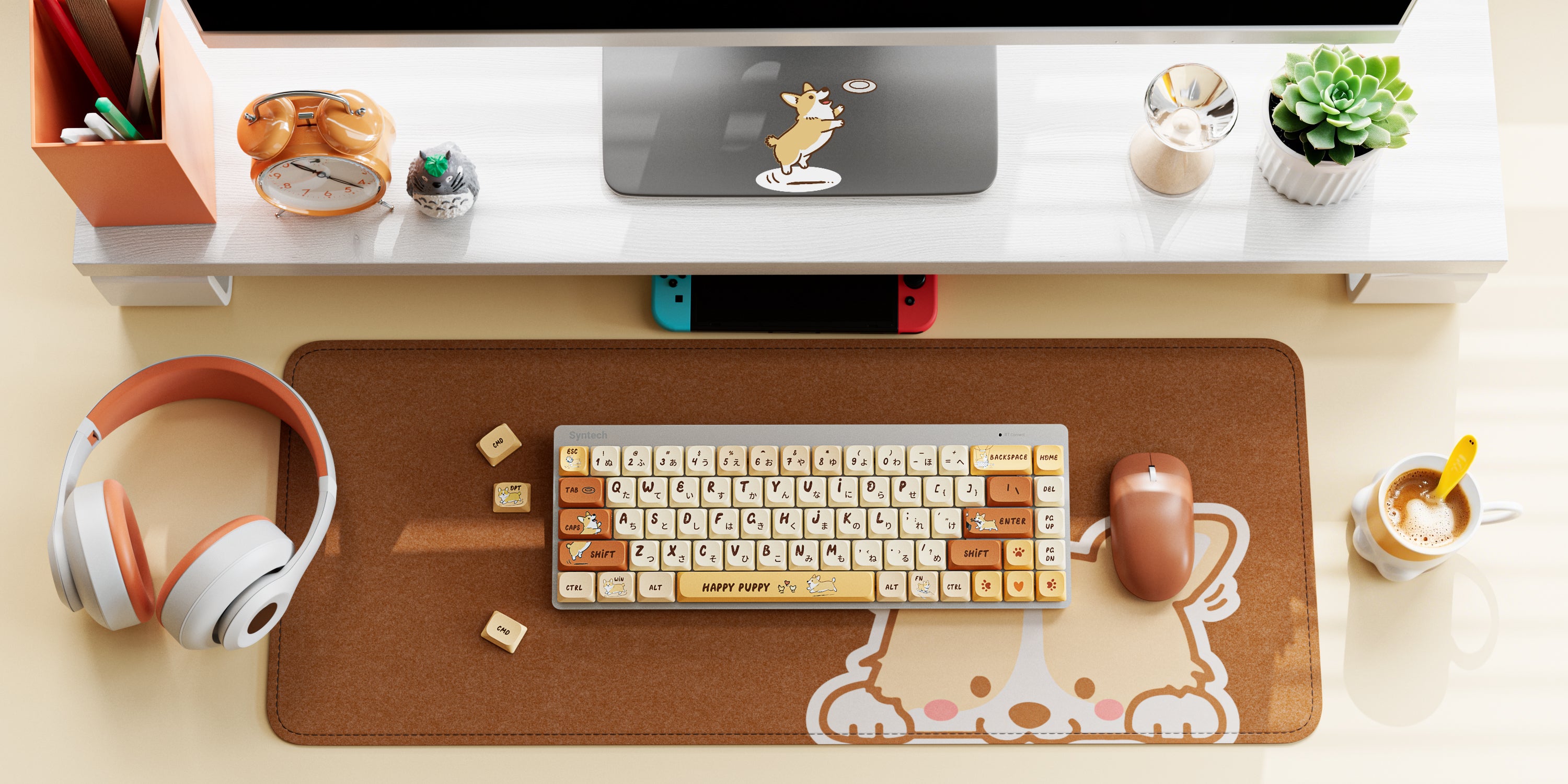
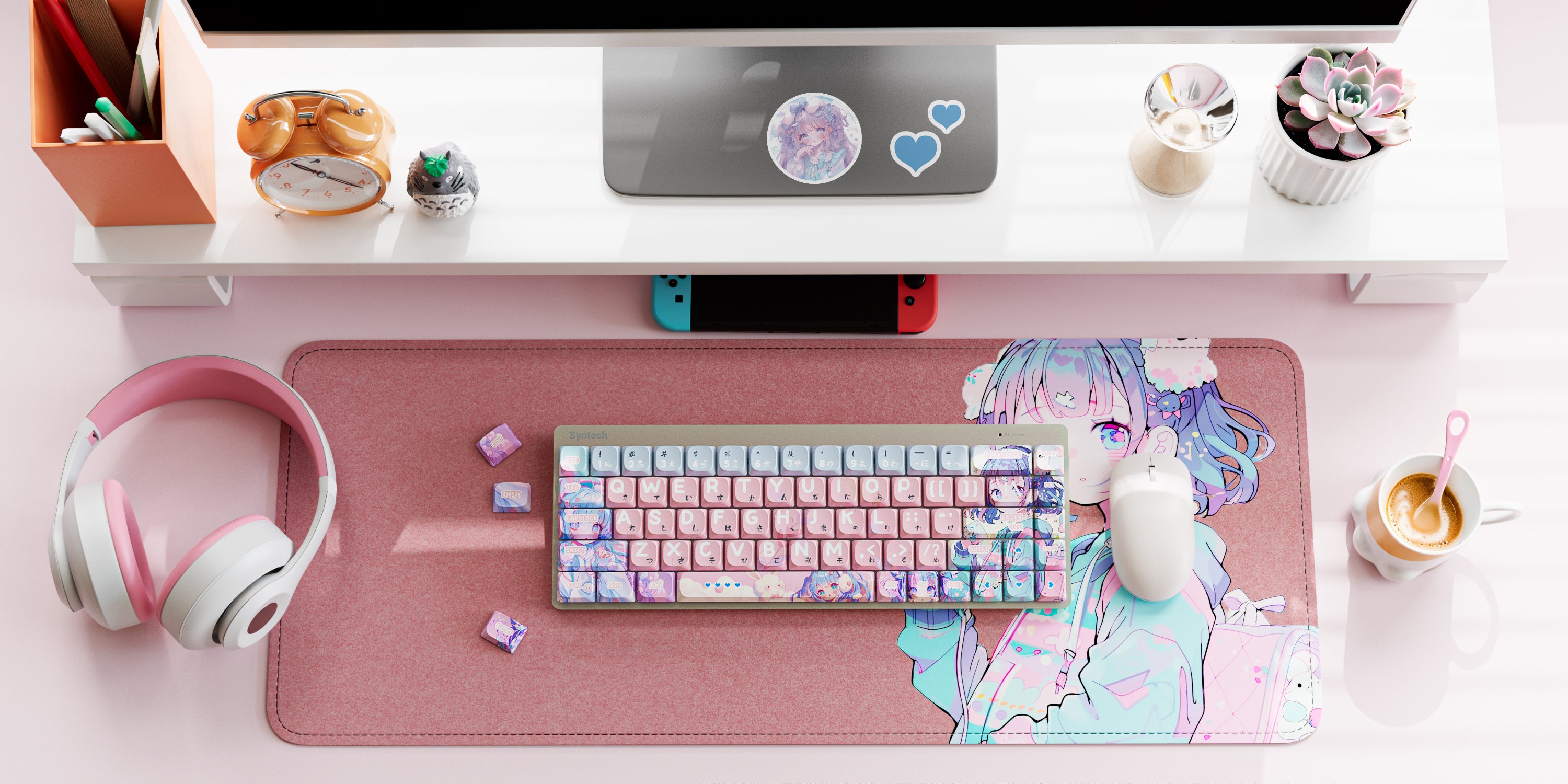
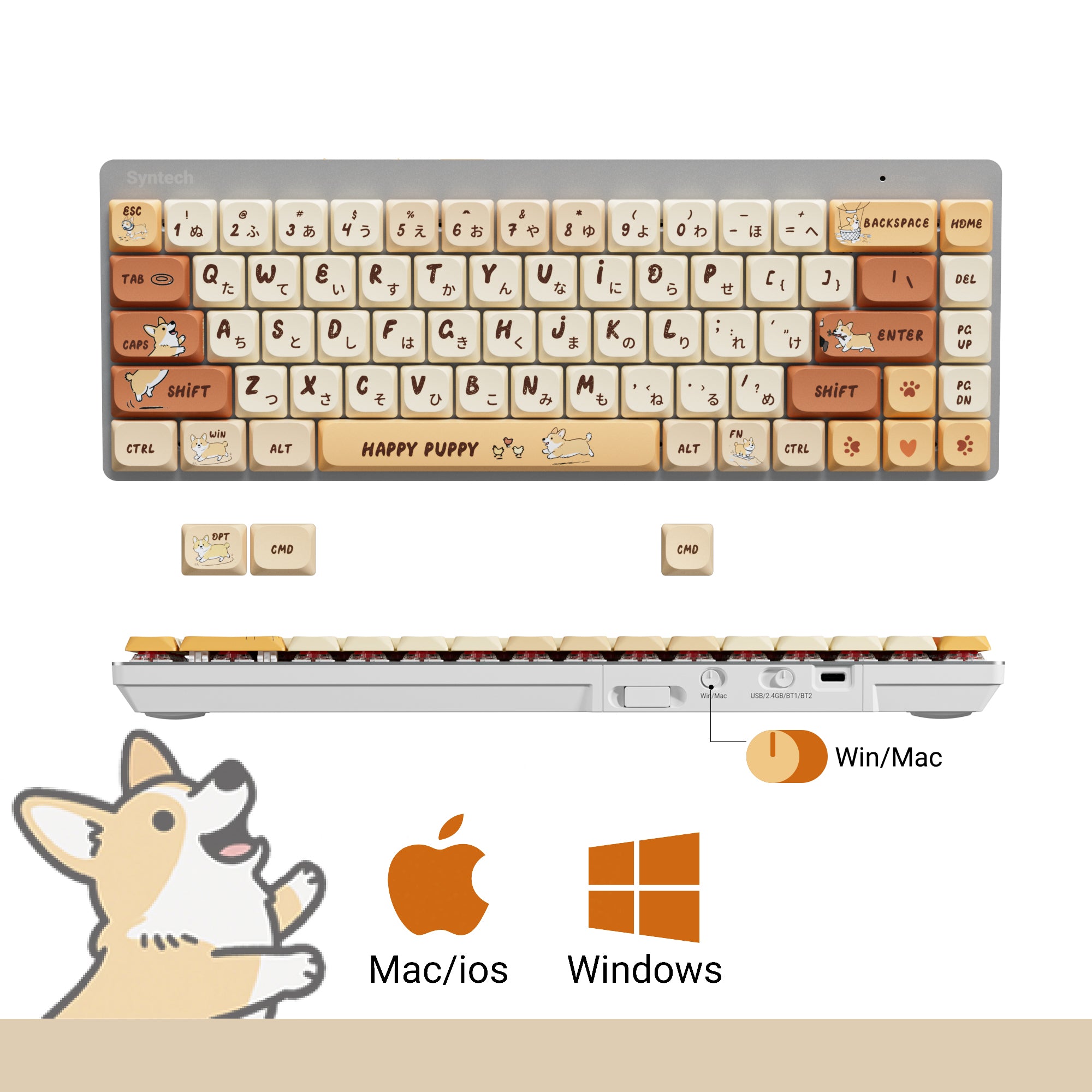
Made for macOS and Windows
Designed for seamless use across macOS and Windows. Instantly switch layouts with a dedicated toggle and enjoy familiar key mapping on every device without relearning or setup.
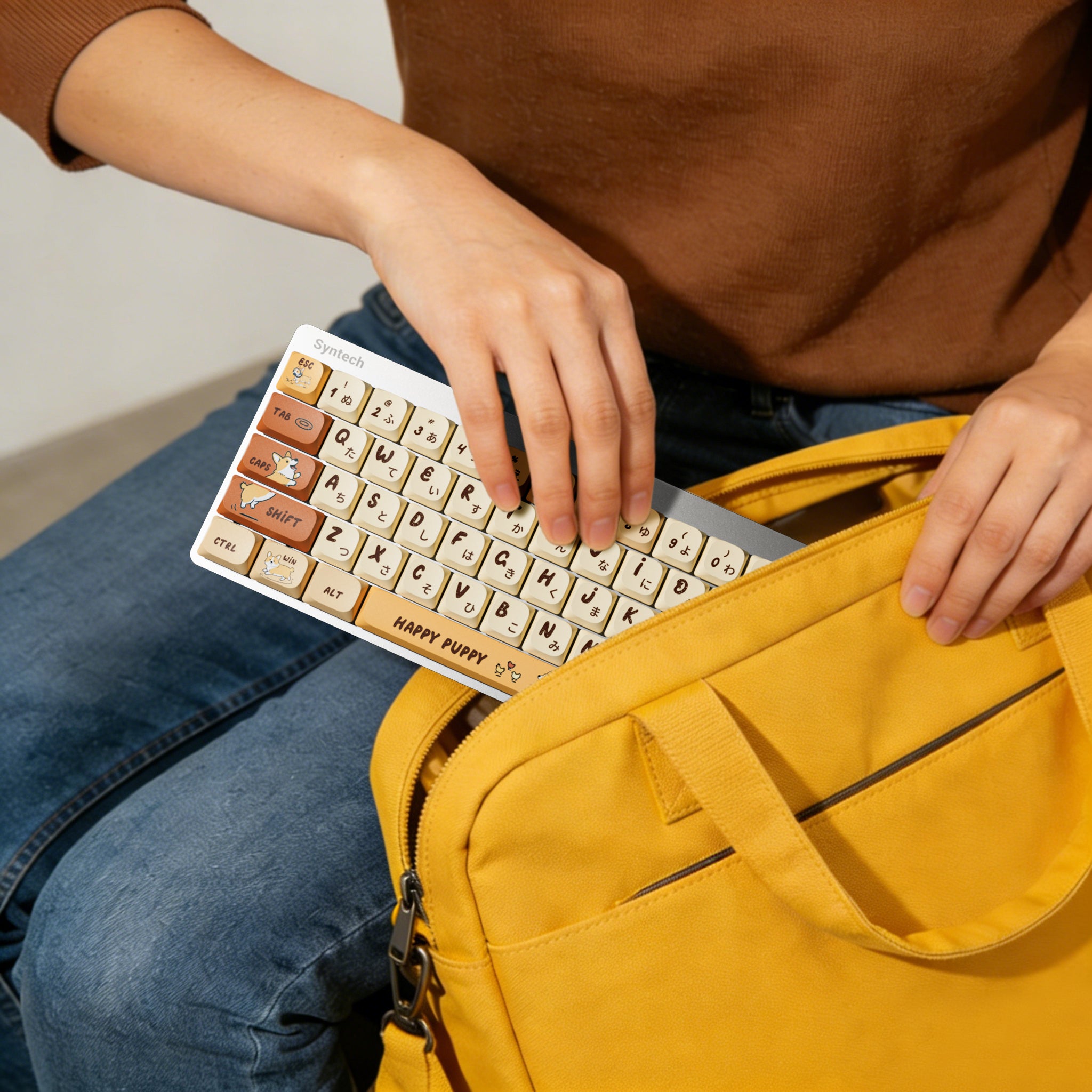
Slim Aluminum Design, Made to Move
A refined aluminum top cover paired with a slim, lightweight profile. Designed to look elegant on your desk and slip easily into your bag, making it ideal for classes, cafés, and hybrid workdays.
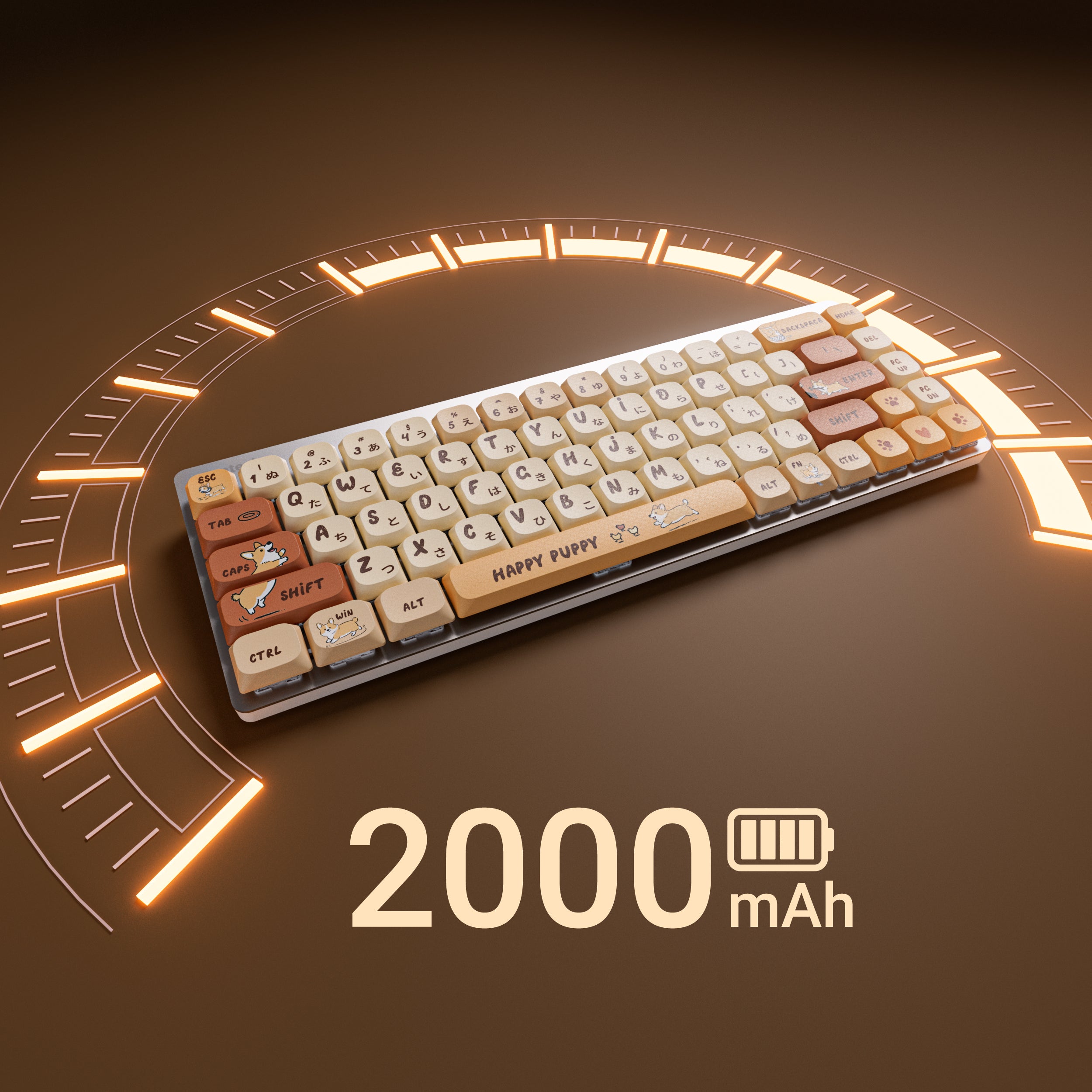
Up to 60 Hours of Worry Free Use
Powered by a 2000mAh battery that delivers up to 60 hours of use on a single charge. Spend less time charging and more time studying, working, or creating.
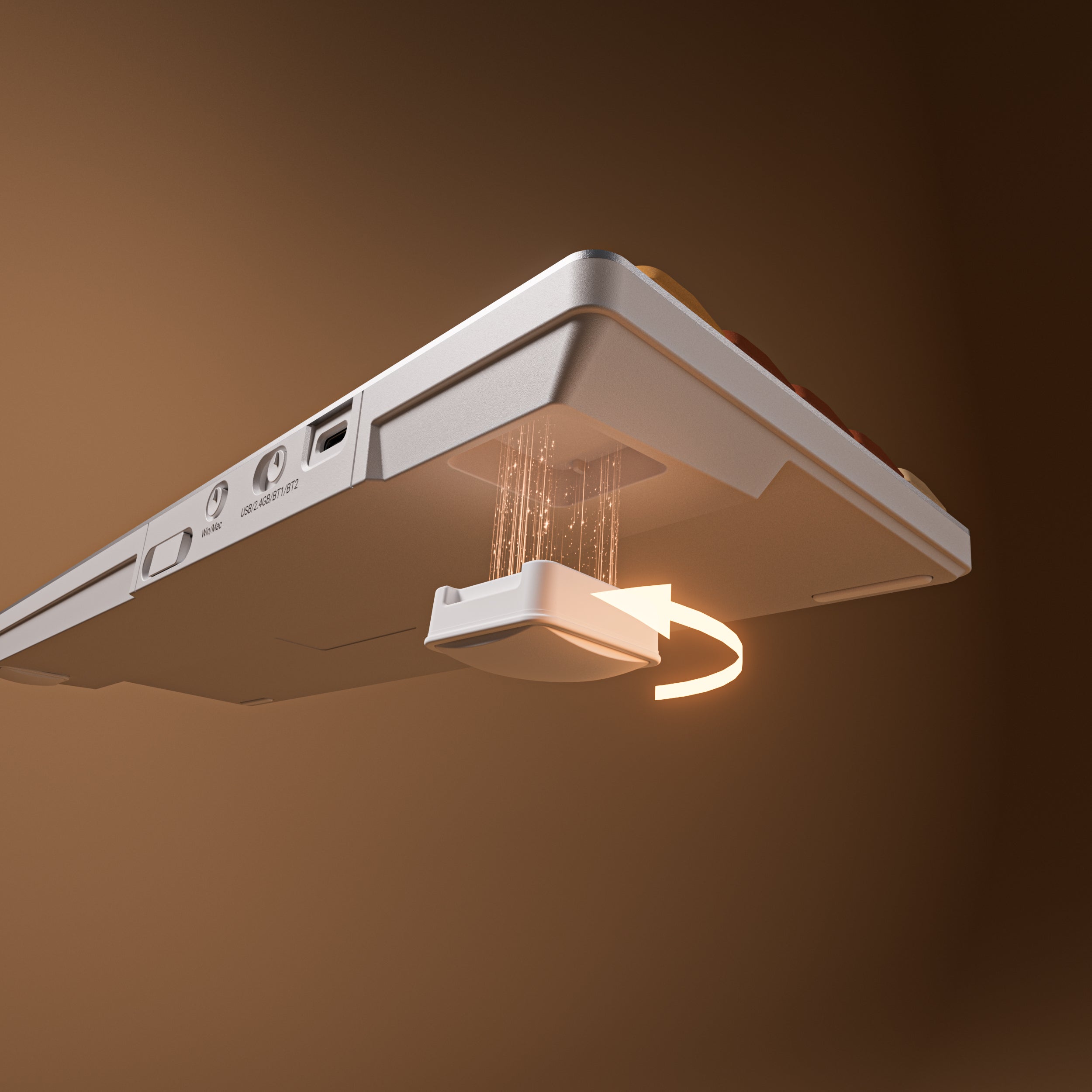
Magnetic Adjustable Footrest
Innovative magnetic footrest that can be adjusted by rotating the keyboard angle.
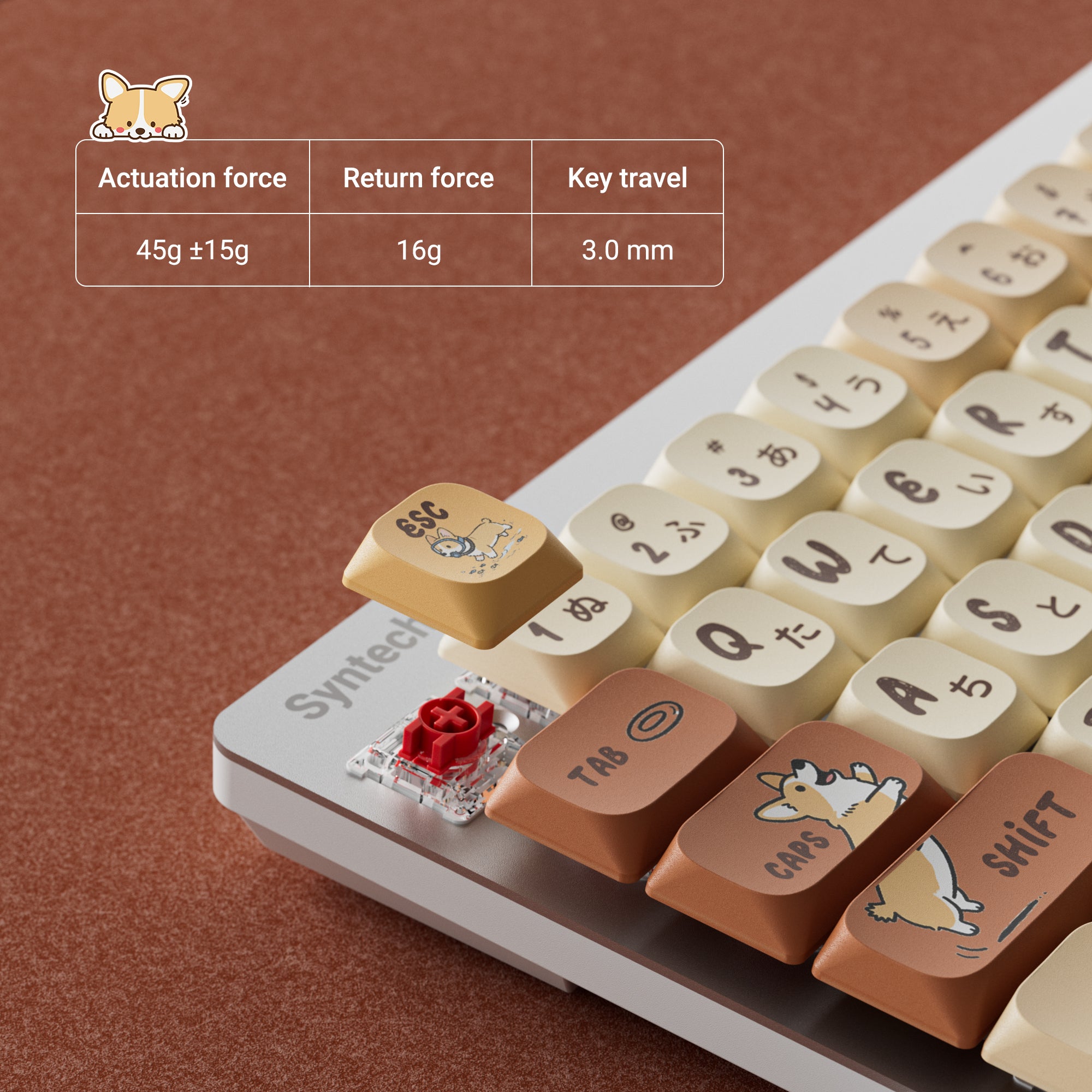
Reliable and Lightweight Linear Axis
Custom linear red axis, maintaining fast input while reducing accidental presses, with a lifespan of up to 50 million keystrokes.
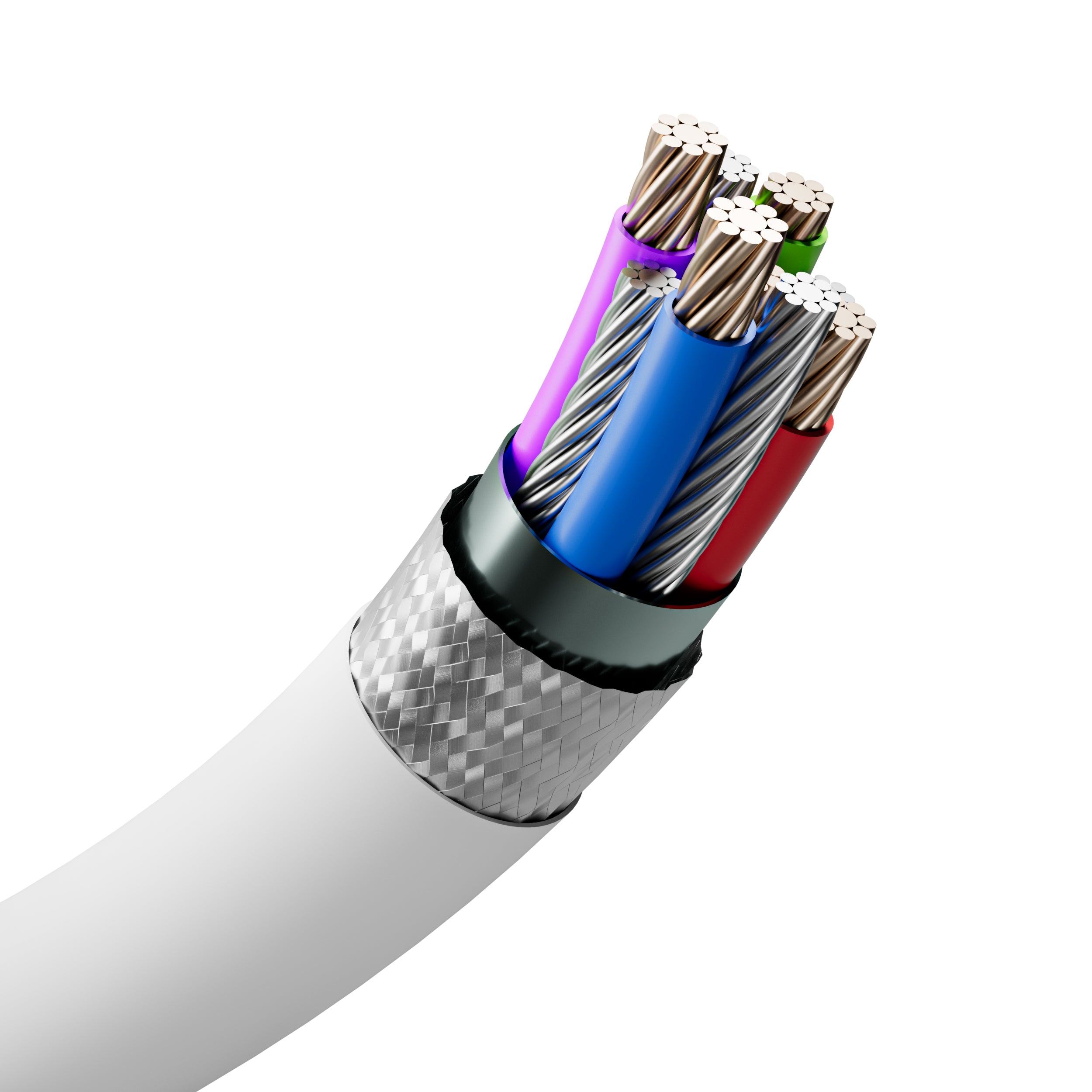
Anti-interference Cable
Anti-bending magnetic ring enhances electromagnetic shielding, making the connection more stable. The reliable cable can withstand longer periods of use.
Video Reviews
This product is available for purchase in Japan through our authorized retailer, BIC Camera.
Frequently Asked Questions
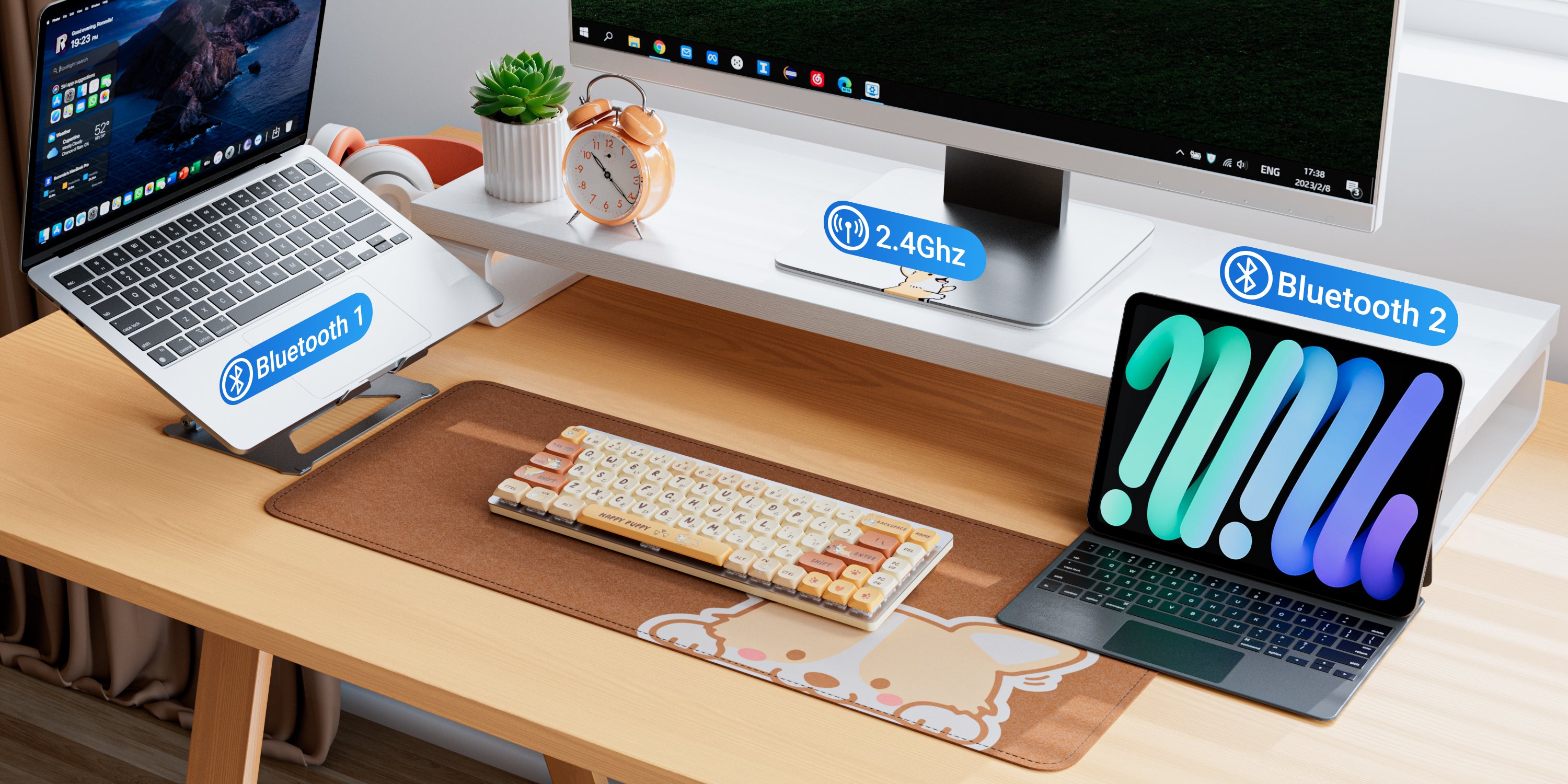
Syntech G68LP supports three connection methods: USB wired connection, Bluetooth connection, and 2.4GHz wireless connection.
① USB Wired Connection
1. Switch the keyboard mode toggle to USB mode.
2. Connect the keyboard to your computer using the included USB cable.
3. The keyboard is ready to use.
② Bluetooth Connection
G68LP supports connecting two Bluetooth devices and allows quick switching between them.
Connect the first Bluetooth device (BT1)
1. Switch the keyboard mode toggle to BT1 mode.
2. Open your computer’s Bluetooth settings.
3. Select “G68LP BT1” from the device list to pair.
Connect the second Bluetooth device (BT2)
1. Switch the keyboard mode toggle to BT2 mode.
2. Open your computer’s Bluetooth settings.
3. Select “G68LP BT2” from the device list to pair.
After pairing, you can quickly switch between two Bluetooth devices by changing between BT1 and BT2 modes.
③ 2.4GHz Wireless Connection
1. Switch the keyboard mode toggle to 2.4GHz mode.
2. Insert the included USB receiver into your computer’s USB port.
3. The keyboard will automatically connect after a few seconds.
※ Please refer to the product images for the USB receiver location.
Syntech G68LP supports Mac devices.
1. Switch the keyboard mode toggle to Mac mode.
2. The keyboard will switch to Mac key layout mode.
3. The key functions will match Mac system settings.
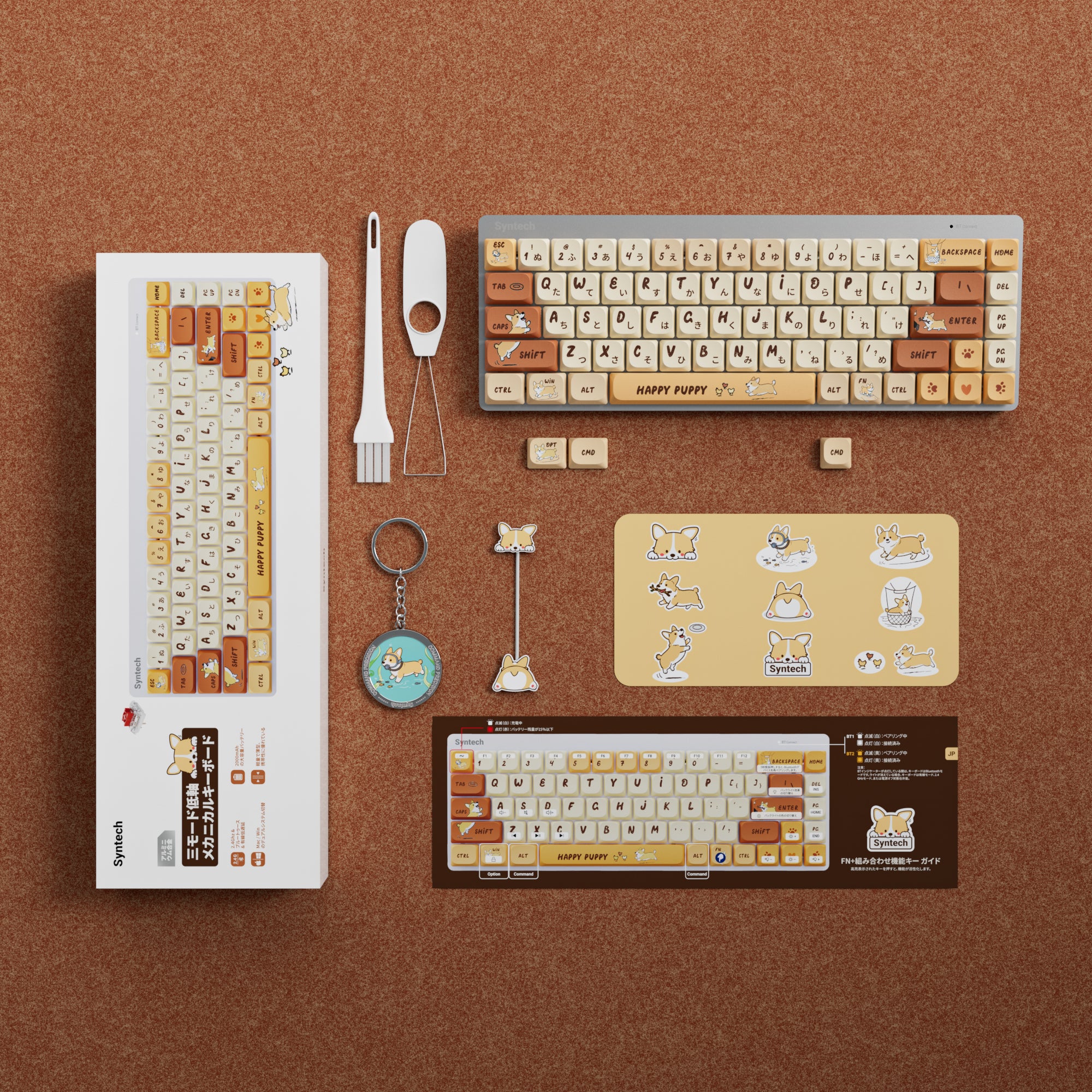
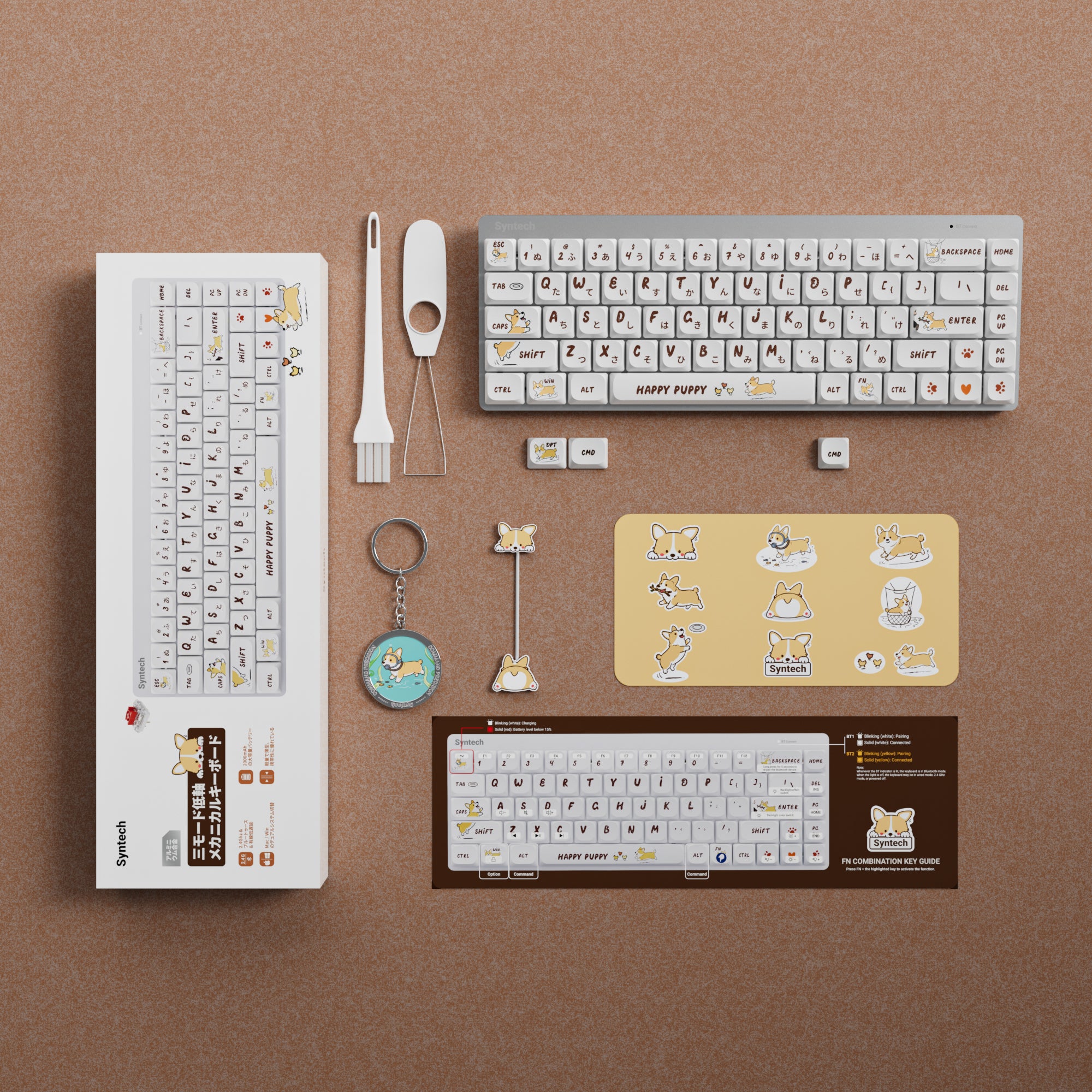
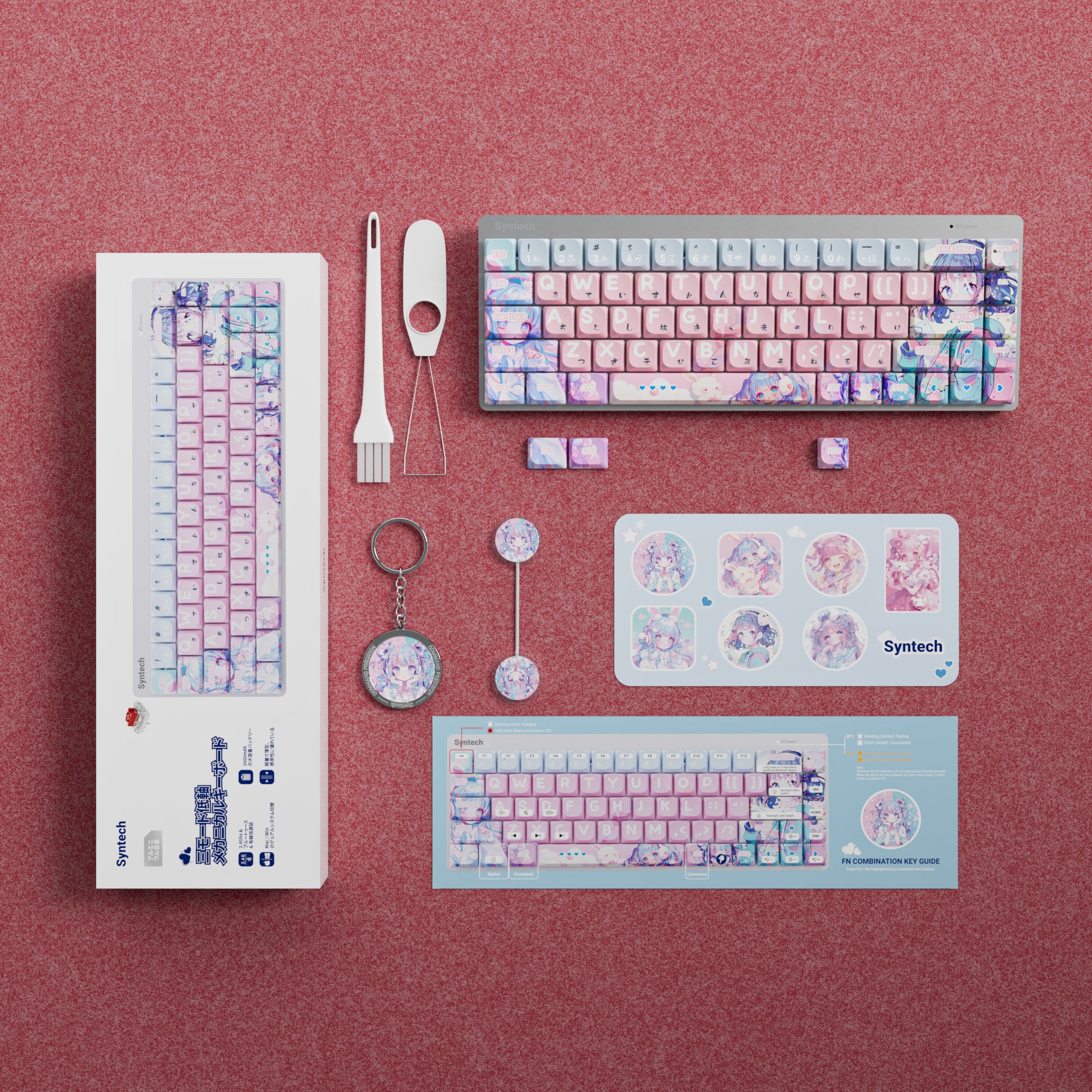
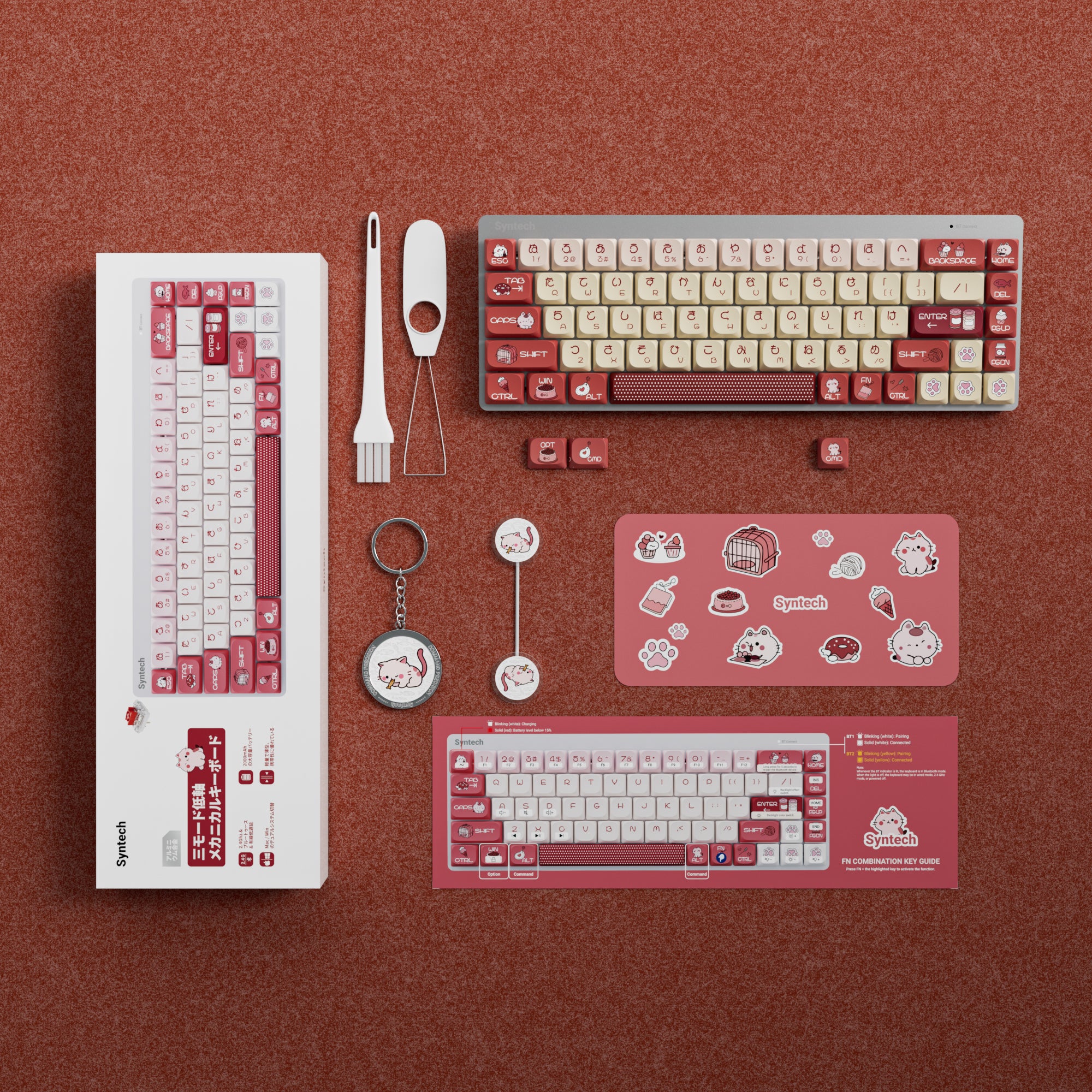
Mac-specific replacement keycaps are included for users who prefer a Mac-style layout.
※ Bluetooth, 2.4GHz, and USB connection methods are the same as Windows devices.
Smartphones and tablets can be connected via Bluetooth.
Connection steps are the same as Bluetooth pairing:
1. Switch the keyboard to BT1 or BT2 mode.
2. Open Bluetooth settings on your smartphone or iPad.
3. Select “G68LP BT1” or “G68LP BT2” to connect.
Compatible with iPhone, Android smartphones, and iPad.
Bluetooth
· No USB receiver required.
· Connects directly to computers, smartphones, and tablets.
· Supports quick switching between two Bluetooth devices.
· Recommended for daily work, study, and mobile devices.
2.4GHz
· Requires the USB receiver.
· Requires a USB-A port or adapter.
· Provides a more stable connection with lower latency.
· Recommended for gaming and fast-response applications.
Please check the following:
- Make sure the keyboard is powered on.
- Confirm the correct connection mode is selected (USB / Bluetooth / 2.4GHz).
- Make sure Bluetooth is enabled on your device.
- Make sure the USB receiver is properly connected when using 2.4GHz.
- Make sure the correct Bluetooth device name is selected (G68LP BT1 / G68LP BT2).
If the issue continues, please contact our customer support team for assistance.
G68LP does not support hot-swappable switches.
Hot-swappable means that users can remove and replace keyboard switches directly without soldering or professional tools.
Since G68LP does not support hot-swappable switches, please do not disassemble or replace the switches yourself, as this may damage the keyboard and affect warranty coverage.
Currently, G68LP does not support software or drivers.
All keyboard functions are controlled through the keyboard hardware.